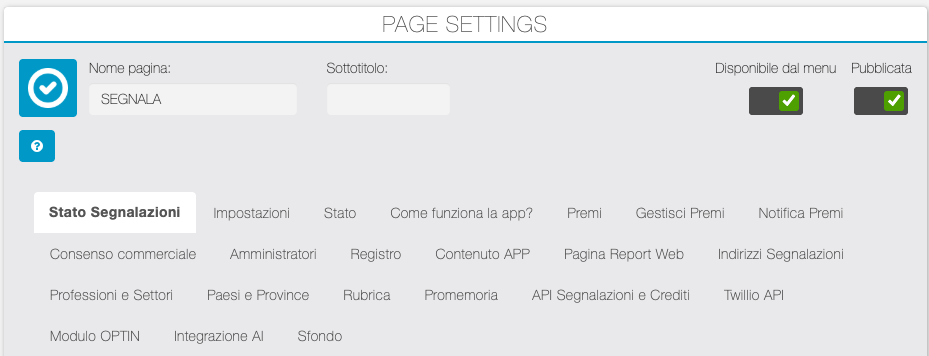
Control Panel
Report Status
The table shows all the recorded reports
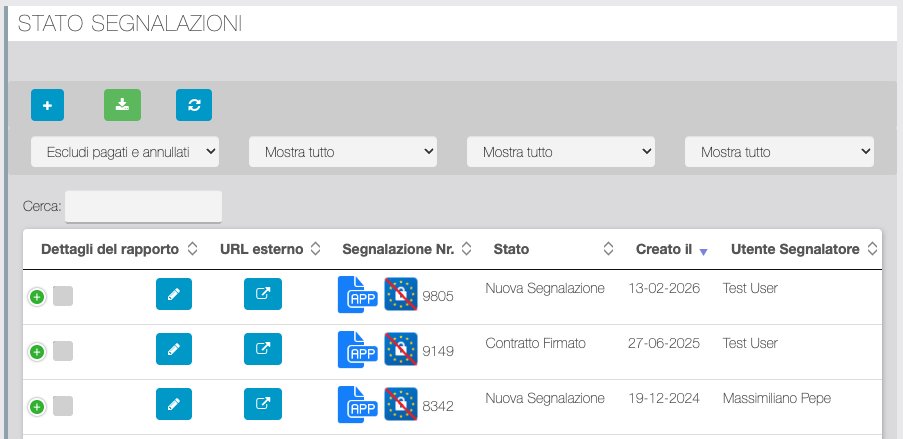
| Function | Description |
|---|---|
 | Manually entering a report. The manager can enter a report on behalf of a Referrer. |
 | Download CSV reports |
 | Refresh reports table |
| First dropdown filter | Show all or filter by report status. Default: Excludes paid and declined statuses. |
| Second dropdown filter | Filter Reports for Single Agent |
| Third dropdown filter | Filter Reports for Single Referrer |
| Search | General search filter |
 | Multiple table row selection box. Allows you to apply status changes to multiple reports simultaneously. |
 | Access the Report details |
 | Show link for Administrator and Agent to open and manage the report from external management system |
 | Icon showing whether the report was made in the app or through an external interface |
 | GDPR consent status. Without red line strikethrough = consent confirmed. With red line strikethrough = consent not confirmed. If the consent has not been confirmed, the icon is clickable and the manager can manually set the date/time of approval (if enabled in GDPR SPECIAL SETTINGS) or he can share links for approval by the prospect by clicking on the Whatsapp icon. |
Settings
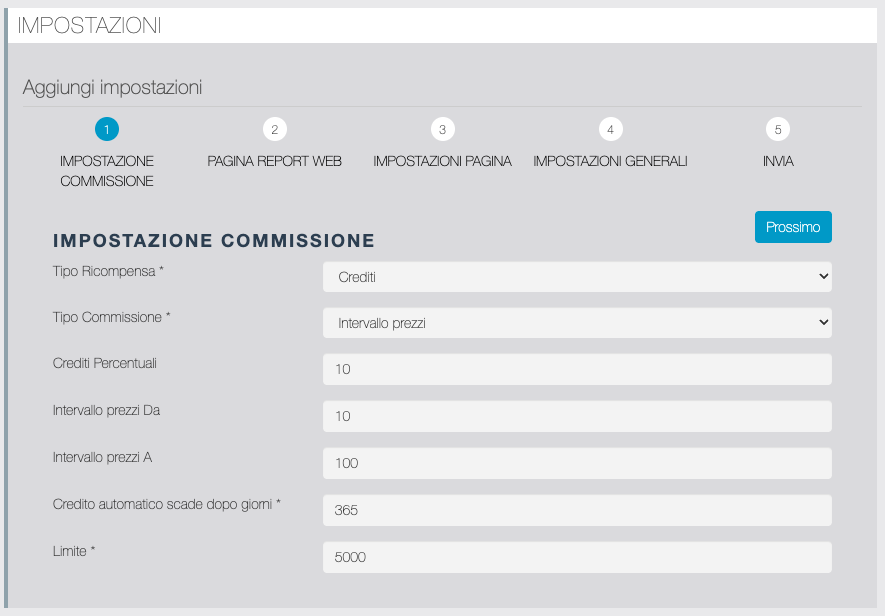
COMMISSION SETUP
| Function | Description |
|---|---|
| Reward Type | In Euros or Credits. If you're using Credits, it activate the Prizes section in the app. |
| Commission type | Fixed: activate the field in which to enter the credits/euros assigned to each report. % Commission: activate the field to enter the percentage that will appear on the Reports page of the app. The manager will have to manually set the corresponding euros/credits for each report. Price Range: activate two fields to enter the from/to commission that will appear on the Reports page of the app. The manager will have to manually set the corresponding euros/credits for each report. |
| Auto credit expire after days | This parameter sets a limit on the number of days within which the Referrer can use the credits they have received. |
| Limit | Total commissions earned by the Referrer to activate the notification to add the VAT number to the Profile. At that point the addition of new reports will be blocked if they VAT number is not added. |
REPORT PAGE
| Function | Description |
|---|---|
| Enable Invite Prospectus | If enabled, the Referrer from the app can send links for Prospect to self-apply |
| Enable Submit Report | If enabled, the Referrer can send the report via the Prospect data entry form |
| Enable Report Type | If enabled, the Referrer must choose between two types of Prospects, predefined from APP Content tab > ADD REPORT > Report Type Popup. Report Type will be displayed on the Report details. |
| Create a Report in behalf of a Referrer | If enabled, Administrator and Agent can insert a Report from the app on behalf of a Referrer |
| Enable Reference Level | If enabled the manager can assign a level from 1 to 5 in the report details |
| Enable Report for Platform | If disabled, it hides the report entry form in the app, selectively only on Apple, Android devices, or both. |
| Authorized Label | Label for requesting consent to commercial communications on the landing page used in the "Invite Prospect" reporting mode |
| Commercial consent enabled? | Enable/disable the request for consent to commercial communications on the "invite prospect" landing page. |
| Landing Page Header Label | Default label for the landing page header. Customization of the title and content of that page can be added in the section GDPR. |
SETTINGS PAGE
| Function | Description |
|---|---|
| Sponsor Type | Standard: Sponsor/Agent selected manually by the Referrer or by the manager via the Referrer Phonebook. Geolocation: Sponsor/Agent is automatically matched to the Referrer based on the province indicated during registration. (With this option activated, each Agent can be assigned one or more Provinces.) |
| Enable Multiple agent selection? | Only active for Sponsor Type = Geolocation. If enabled, you can define two types of Agents, both of which will be automatically assigned to the Referrer based on their assigned Provinces. |
| Label for Agent Type One | Field active only if Enable multiple agent selection? = Yes |
| Label for Agent Type Two | Field active only if Enable multiple agent selection? = Yes |
| Enable Mandatory Agent Selection | Activate only if Sponsor Type = Standard. If activated, the Referrer must select Agent when registering their Profile via the app. |
| Enable address (Country, Province) | Enable the Country and Province input fields on the Referrer Settings/Profile page from the app |
| Mandatory address (Country, Province) | If enabled, it makes it mandatory to enter the Country and Province when the Referrer registers from the Settings/Profile page |
| Enable Address (Street, ZIP, City) | Enable the Street, ZIP and City input fields on the Referrer Settings/Profile page of the App |
| Mandatory Address (Street, ZIP, City) | If enabled, it makes it mandatory to enter the Street, ZIP and City when the Referrer registers from the Settings/Profile page |
| Enable Company field | Enable the Company Name field on the Referrer Settings/Profile page from the app |
| Mandatory Company | If enabled, it makes it mandatory to enter the Company Name when the Referrer registers from the Settings/Profile page |
| Mandatory Legal Address | If enabled, it makes it mandatory to enter the address when the Referrer registers from the Settings/Profile page |
| Mandatory Sector | If enabled, it makes it mandatory to choose a Business Sector when the Referrer registers from the Settings/Profile page |
| Mandatory Profession | If enabled, it makes it mandatory to choose a Job when the Referrer registers from the Settings/Profile page |
| Enable Extra 1 | Enable an additional input field on the Referrer Settings/Profile page of the App |
| Mandatory Extra 1 | If enabled, it makes it mandatory to fill in the Extra 1 field when the Referrer registers from the Settings/Profile page |
| Label Text for Extra 1 | Custom label for Extra 1 field |
| Enable Extra 2 | Enable an additional input field on the Referrer Settings/Profile page of the App |
| Mandatory Extra 2 | If enabled, it makes it mandatory to fill in the Extra 2 field when the Referrer registers from the Settings/Profile page |
| Label Text Extra 2 | Custom label for Extra 2 field |
| Birthdate | Enable the date of birth entry field on the Referrer Settings/Profile page of the App |
| Mandatory Birthdate | If enabled, it makes it mandatory to enter the date of birth when the Referrer registers from the Settings/Profile page. |
| Notification Type | With this field you can choose how to send automatic notifications (email only, push notifications only, both). |
| Privacy | Text of the Privacy Policy specific to be approved by Referrer. |
| Terms | Text of Terms and conditions to be approved by Referrer. |
| Special Terms | Title and Text entry fields to specify terms and conditions items with explicit approval. |
GENERAL SETTINGS
| Function | Description |
|---|---|
| APP Read Only? | Enable read-only mode for Migareference feature in the app. |
| Check App Version? | If enabled, a check is performed when the app is opened. If the installed version is < of version indicated in the following fields, the user must update the app to use it. |
| Enable Android App Version Check? | Enable Android app version control. |
| Android Store Version | Insert the latest Android version released. |
| Enable iOS App Version Check? | Enable iOS app version control. |
| iOS Store Version | Insert the latest iOS version released. |
| Can agent see reports? | If enabled, the agent will be able to see in the app the reports of the Referrers assigned to him. |
| Enable GDPR? | If enabled, it activates the management of the GDPR consent request from the app: immediately after entering a report from the app, the Referrer sends a message to the Prospect containing a short link to a landing page where they can accept the consent to be called back. If enabled, it also activates the GDPR Consent Status icon (see REPORT STATUS section) |
| Enable Reminder WebHooks? | If enabled, activates automatic reminder webhooks (to be set in the Reminders section) |
| Enable Qualifications feature | If enabled, activate the tab Qualifications |
| Qualification Grace Days | Number of days in which the Referrer maintains the qualification achieved in the absence of new reports (only if the Qualifications feature is enabled). |
| Can agent manage reports? | If enabled, the agent can access the details tab of the Reports of the Referrers assigned to him from the app and manage their status progress. |
| Can agent manage Reminder Automations? | If enabled, Agents can set manual Reminders on the Reports they manage. |
| Working Days Count (excluding weekends)? | When managing automatic reminders, the system counts the days for sending them excluding Saturday and Sunday. |
| Enable reminder recap email | If enabled, Administrators (and Agents if enabled) receive a summary email of the day's Reminders. |
| Recap Email Preferred language | Translation of the encoded labels in the Reminders summary email template. |
| Reminder Recap email BCC recipients | It is possible to indicate more than one recipient, entering the emails separated by commas. |
| Reminder Recap email Subject | Fill in to customize the email recap subject |
SUBMIT
| Function | Description |
|---|---|
| Save all changed settings |
Status

Report status configuration section. You can reset the status settings to default, download status configuration JSON files and images, and add new statuses.
Status Settings
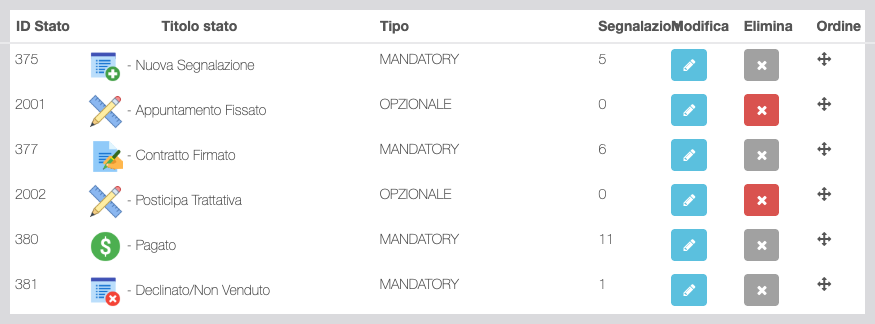
| Function | Description |
|---|---|
| Access Add/Edit status. |
  | Status deletion. The button is active (red) only for intermediate statuses. The four basic status cannot be deleted: New Report: Initial status. Signed contract: enhance the commission. Paid: Confirms the commission payment and increases the Referrer's total euros or credits. Declined/Not Sold: Closes the process without assigning the commission. |
Add/Edit status
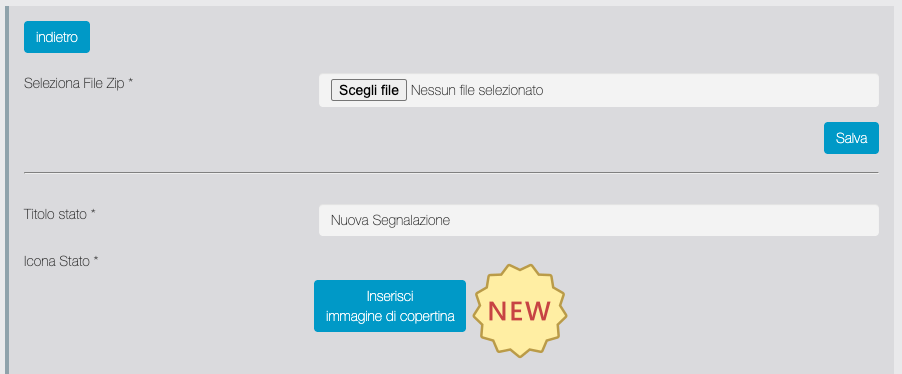
| Function | Description |
|---|---|
| Select zip file | With this function you can import the configuration of previously exported states. |
| State Title | You can customize the title of each status. |
| Status icon | You can customize the icon for each status. |
| Tags | List of tags you can use to customize your status messages. |
| Email notification settings | For each status, you can customize the title, message, and any delay in sending the automatic email message sent when the status is assigned to the report. You can choose whether the message is intended for the Referrer, the Administrators/Agents, or both. If "Both" is selected, the one intended for Referrers and the one intended for Administrators/Agents must be customized separately. |
| PUSH NOTIFICATIONS Settings | For each status, you can customize the title, message, and any delay in sending the PUSH message when the status is assigned to the report. You can choose whether the push message is intended for the Referrer, Administrators/Agents, or both. If "Both" is selected, the one intended for Referrers and the one intended for Administrators/Agents must be customized separately. |
| Mandate acquired | Determines the commission value for the Referrer. If the commission is variable, when assigning a status to a report, the manager must manually enter the commission amount in euros or credits based on the Commission Setup choice. NB: only one status must have this check enabled. |
| Fallback Automation | If enabled, you can set up an automation that automatically changes the status of reports to have this status assigned after N days. |
| Pause sending | Stop sending automatic messages for this status. |
| Import Reports from | Only available on additional statuses. Allows you to switch all reports in this status to another status selectable from the dropdown list. |
Push Notifications Log
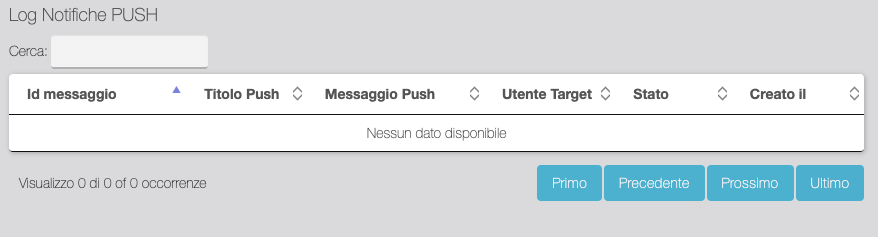
| Function | Description |
|---|---|
| Table displaying sent status change push notifications. |
Email Notifications Log
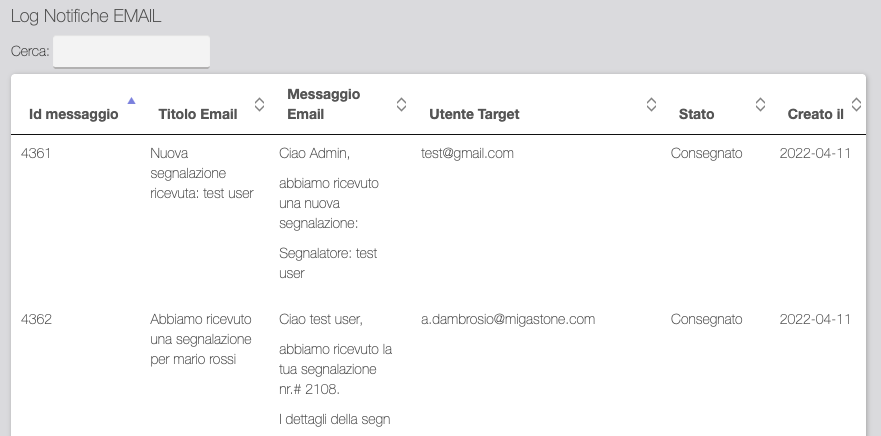
| Function | Description |
|---|---|
| Table displaying sent status change email notifications. |
How app Works?
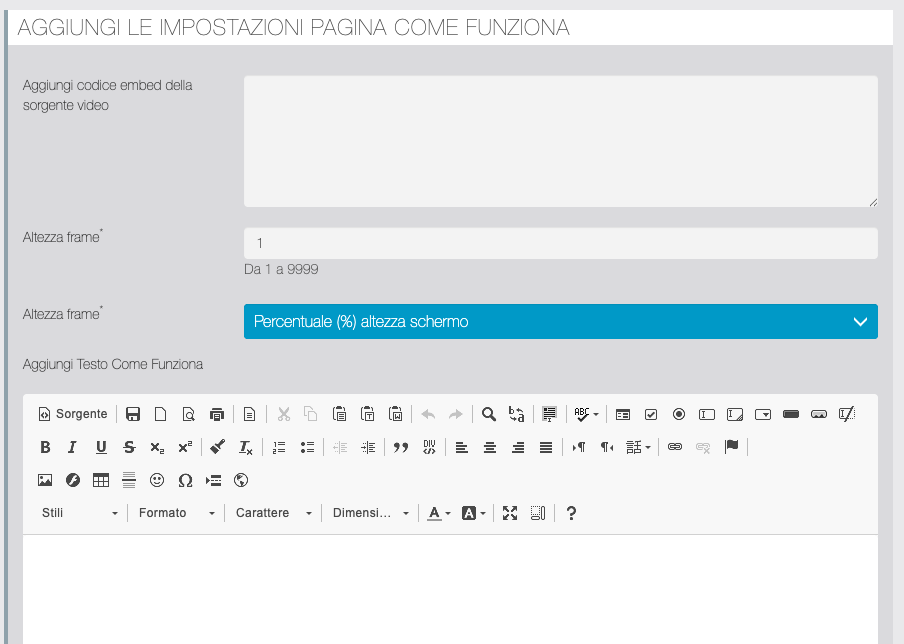
Configuring the "How it Works?" section visible from the Migareference page of the app.
| Function | Description |
|---|---|
| Add video embed source | Copy and paste the YouTube or Vimeo embed code to integrate your presentation video into the app. If the client doesn't have their own custom video, we'll insert our default video. |
| Frame height | Allows you to adjust the height, in pixels or percentage, of the section in which the video embed frame is inserted. |
| Add Text How It Works | Customizing the text part of the page. |
| Site Link | Indicate the company website |
| Company email | |
| Phone | Telephone contact |
| RD Full Name | Referrer Director's name. It is also used to enhance the tag available for status and welcome messages to Referrers. |
| RD Email | Referrer Director's email. It's also used to enhance the tag available for status and welcome messages to Referrers. |
| RD Phone | Telephone number of the Referrer Director. It is also used to enhance the tag available for status and welcome messages to Referrers. |
| RD Calendar url | URL of the service used for appointment scheduling (e.g., Calendly). It is also used to enhance the tag available for status and welcome messages to Referrers. |
Prizes
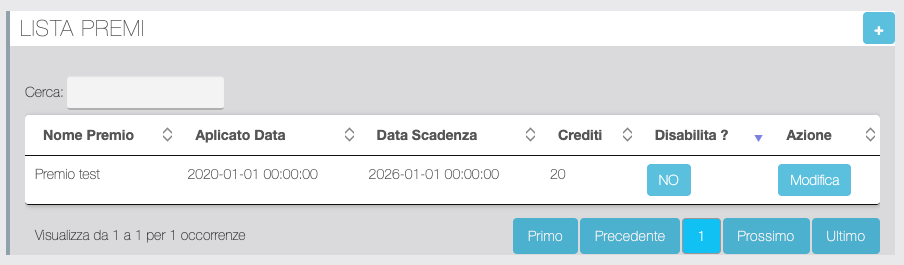
Add/edit the Prizes that will be displayed to the Referrer in the "Prizes" section of Migareference in the app. The Prizes section in the app is active only if Commission is set to Credits.
| Function | Description |
|---|---|
| Creating a new Prize |
| Disability? | It is only possible to deactivate the Prize, it is not possible to cancel it. |
 | Access to modify the Prize |
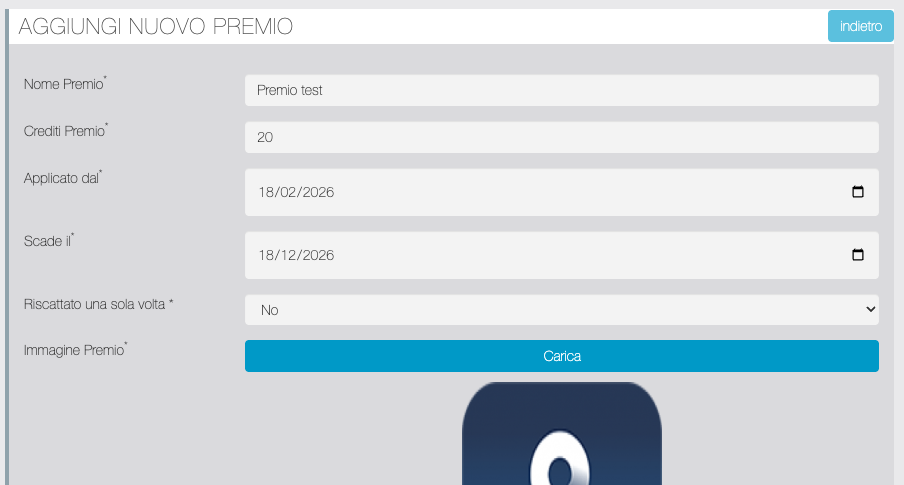
Add/Edit Prize
| Function | Description |
|---|---|
| Prize Name | |
| Prize Credits | The number of credits required to redeem the Prize |
| Applied from | Start of validity of the Prize |
| Expires on | Prize expiration. If not crucial, specify a very distant date. |
| Redeemed only once? | The Referrer may claim the prize only once. |
| Prize Image | |
| Enable Link 1 | Allows the enabling of a link to an external page |
| URL Link 1 | External URL link |
| Link Button Label 1 | The custom text of the link button |
| Enable Link 2 | Allows the enabling of a second link to an external page |
| URL Link 2 | External URL link |
| Link 2 Button Label | The custom text of the link button |
| Prize Description |
Manage Prizes
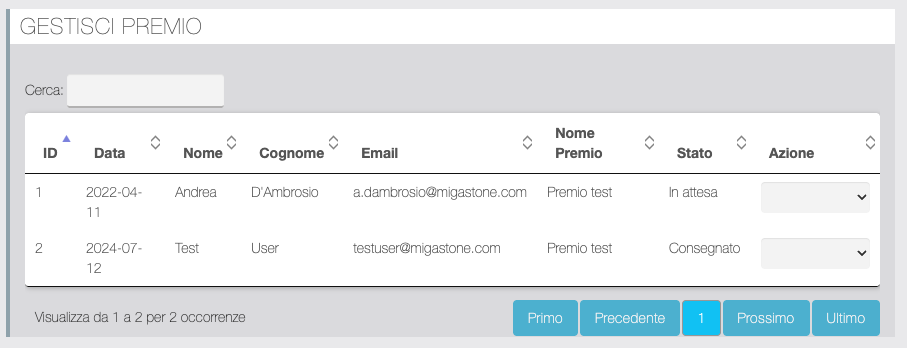
Management panel for redeeming Prizes, requested by the Referrer from the "Prizes" page of the app.
| Function | Description |
|---|---|
| Action | The manager marks the Prize as Delivered or Rejected. If Delivered, the Referrer's total Credits decrease by the number required to redeem the prize. The manager receives an automatic message via email and/or push every time a Referrer requests the redemption of a Prize from the app. When the Manager sets Delivered or Rejected, the Referrer receives an automatic message via email and/or Push. Automatic messages for the Manager and the Referrer regarding the Prizes can be customized from the section Prize Notification. |
Prizes Notification
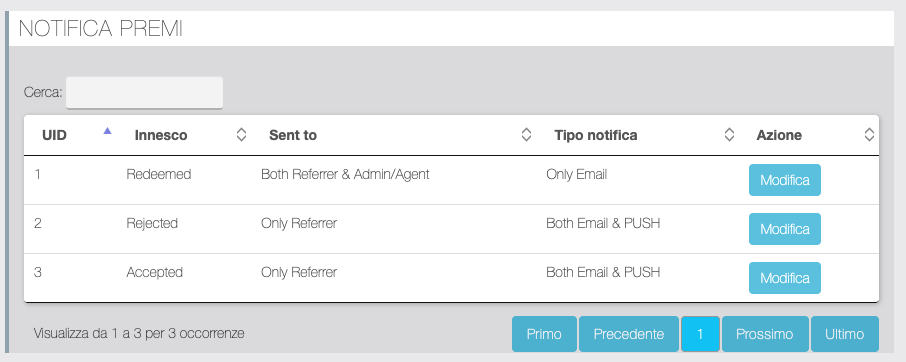
Customize Prizes notifications. The system implements three types of messages: Redemption: Sent when the Referrer requests the redemption of a Prize from the app. Delivered: sent when the Manager performs the relevant action from the panel Manage Prizes. Rejected: sent when the Manager performs the relevant action from the panel Manage Prizes.
| Function | Description |
|---|---|
| The Edit button allows you to access the settings for each of the implemented messages. For each message, you can set the recipient to only the Referrer, only Admin/Agent, or Both. You can set the Subject, Content and BCC recipient of emails addressed to the Referrer and the Admin/Agent (if Both are set) separately. You can set the Title and content of the PUSH for the Referrer and the Admin/Agent (if Both are set) separately. |
GDPR
GDPR-compliant feature settings page.
USER LIST
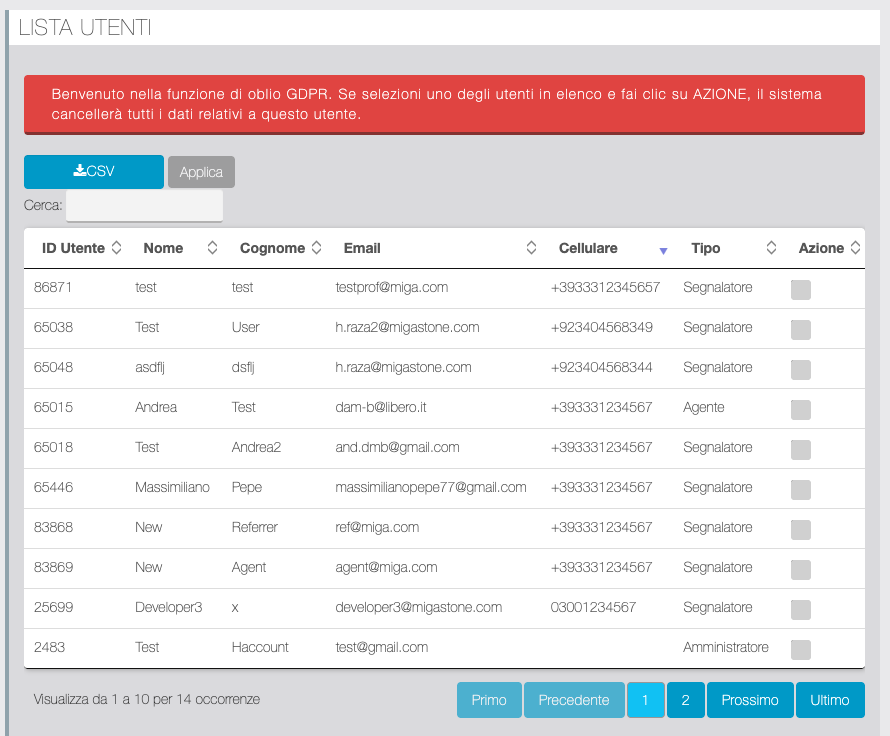
This section allows the deletion of all data relating to the user upon request, in accordance with the right to be forgotten provided for by law.
| Function | Description |
|---|---|
 | You can download the user list in CSV format. |
 | To delete data for one or more users, select them from the list and then click the Apply button. |
GDPR POPUP SETTINGS
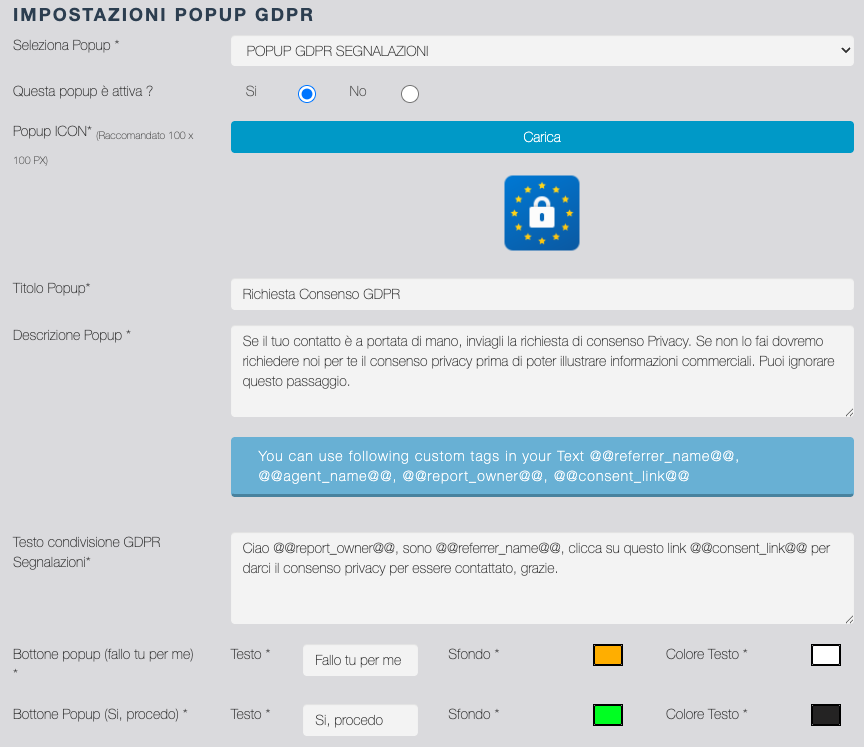
In this section you can customize the pop-ups that the Referrer displays in the app when sending reports and the landing pages for GDPR consent and Prospect Optin.
| Function | Description |
|---|---|
| Select Popup | Select the two items from the drop-down menu to proceed with the related settings. 1) GDPR POPUP REPORTS: accesses the customizations for the popup that is displayed by the Referrer after sending the report via form and the related landing page. This feature is active only if the "Enable GDPR" option is active in the GENERAL SETTINGS and allows the Referrer to send a message to the Prospect with a link to the landing page where they accept consent to be contacted. 2) Popup Invite Prospect: access the customizations for the popup that is displayed by the Referrer using the INVITE PROSPECT mode and the related landing page. This feature allows the Referrer to send a message to the Prospect with a link to the Optin Landing page where they can independently fill in their data, privacy policy and consent to be contacted. |
GDPR STATEMENT FOR PROSPECTS
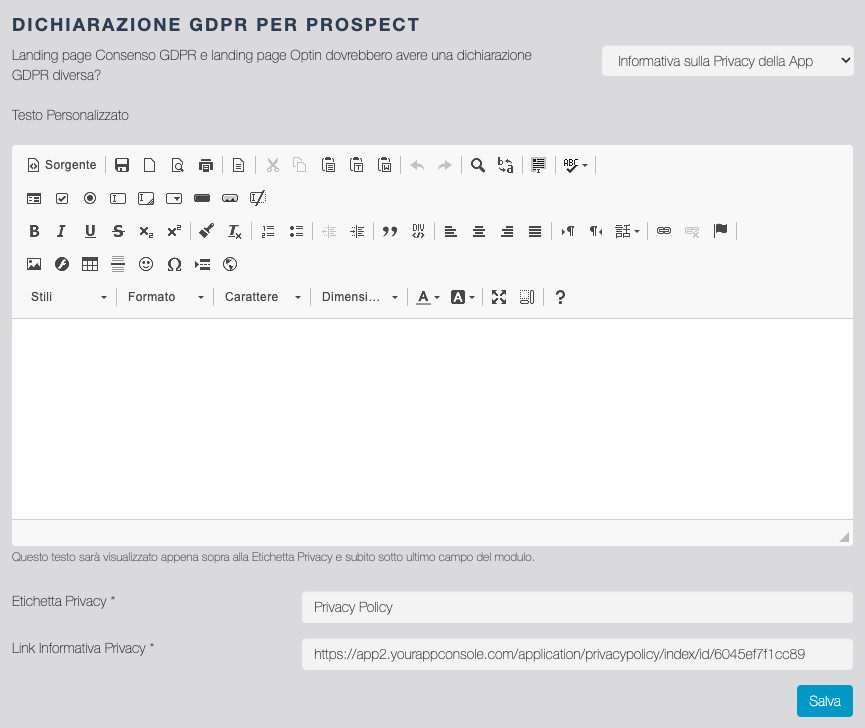
In this section, you can customize the Privacy Policy on the Landing Pages for GDPR consent and Prospect Optin.
| Function | Description |
|---|---|
| Should GDPR Consent Landing Pages and Optin Landing Pages Have Different GDPR Statements? | Select from the drop-down menu 1) App Privacy Policy: to use the same general Privacy Policy as the app. 2) External link: to use an external Privacy Policy page (in this case, indicate it in the "Privacy Policy Link" field below). 3) Personalized Privacy Policy: to use a custom Privacy Policy page (in this case, indicate it in the "Custom text" field below). |
| Custom text | Enter the specific Privacy Policy text for the GDPR consent and Prospect Optin landing pages. |
| Privacy Label | To customize the Privacy Policy link label for the Prospect GDPR Consent and Optin landing pages. |
| Privacy Policy Link | In the case of an external Privacy Policy, indicate the URL. |
GDPR SPECIAL SETTINGS

| Function | Description |
|---|---|
| Allow manual validation GDPR time stamp? | YES: the manager can manually validate from the panel Status Reports GDPR consent by entering a date in the appropriate field or you can send a Whatsapp message to receive explicit consent from the Prospect. NO: The manager CANNOT manually validate, while he can send the Whatsapp message to receive explicit consent from the Prospect. |
Admins
Administrator and Agent/Recruiter role assignment panel via a list showing all users registered in the app. Search filters: - Agents selection by Province (visible only if Sponsor Type is "Geolocation" in PAGE SETTINGS). - only the Administrators - only the Agents - only the Referrers - only users with no assigned role - reset filters
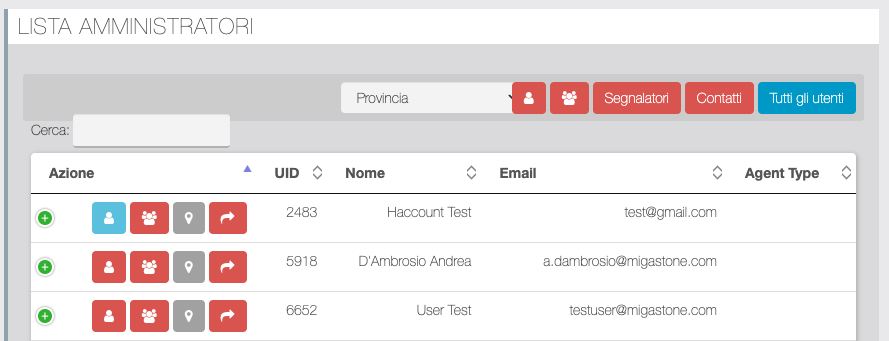
| Function | Description |
|---|---|
 | Click to assign/remove the Administrator role. |
 | Click to assign/remove the Agent role. |
 | Allows you to select one or more Provinces assigned to the Agent. Active only for Agents if Sponsor Type is "Geolocation" in PAGE SETTINGS. If multiple agent selection is active in the PAGE SETTINGS You will be asked to select the agent type. |
 | Receive affiliate link? Automatically activated for the Agent role. |
 | Enable/disable sharing |
| Complete Phonebook? | Enabled for Agents only. When selected, Agents have access to the full Address Book. |
| Assign Administrator | Enabled for Agents only |
Ledger
If Commissions are set to Credits, it allows you to view the statement of all credit transactions and the balance of each Referrer.
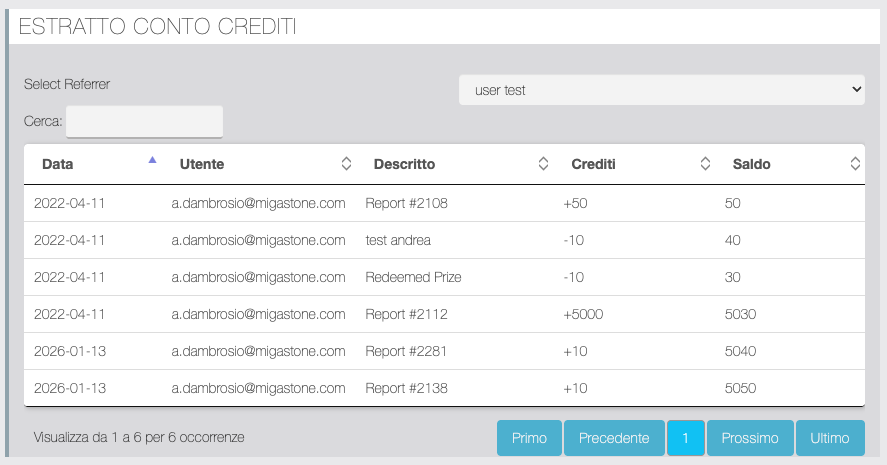
| Function | Description |
|---|---|
| Dropdown selection Referrer | Shows all Referrers, allows access to account statement and credit balance. |
APP Content
From this panel you can customize the appearance of the buttons and content of all sections of the Migareference function.
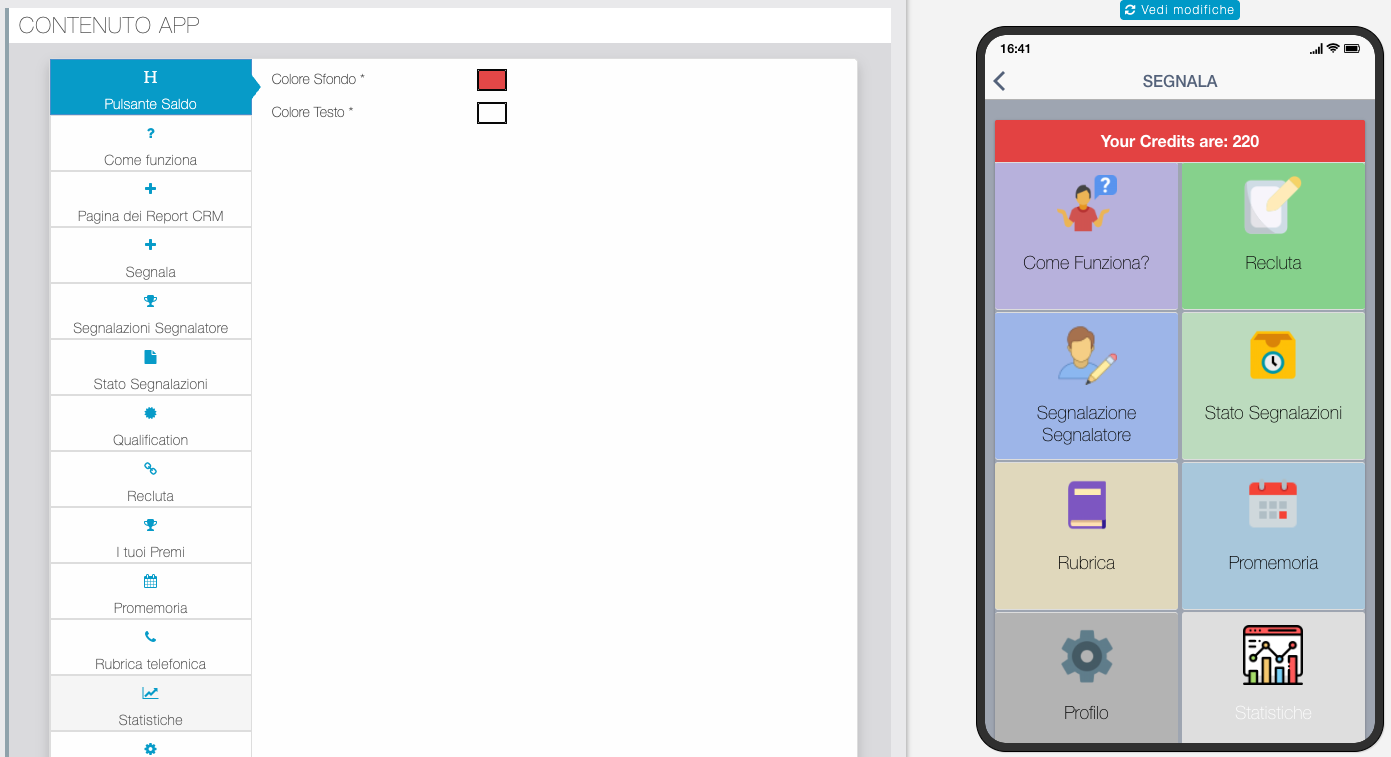
Report Page (Custom Fields)
From this panel, you can customize the input fields for entering Reports. You can customize the fields already active by default and activate up to 10 additional custom fields (custom_fields).
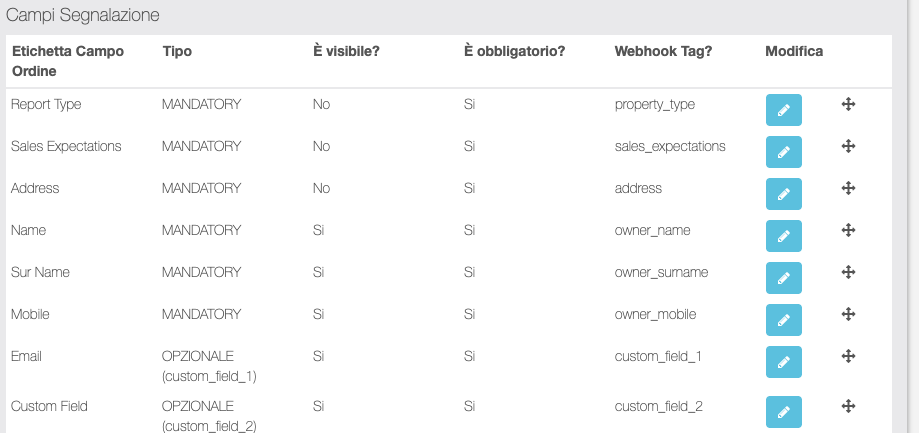
| Function | Description |
|---|---|
| Accesses the field editing screen. |
Add/Edit Field
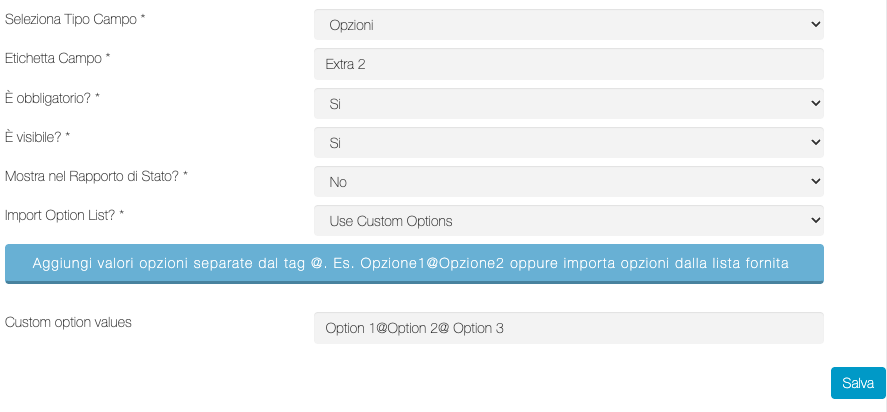
| Function | Description |
|---|---|
| Select Field Type | Choose the field type from the drop-down menu, for text entry, option selection and specific input formats |
| Field Label | The name of the displayed field |
| Is it mandatory? - Is it visible? | If necessary, the field can be visible or hidden and its completion by the user can be made mandatory. |
| Show in the Status Report? | If YES: the field is visible in the report detail of the section Status Reports. |
| Import Option List? | For the Options field type only: allows you to import lists of specific options already available in the function. |
| Custom Option Values | For the Options field type only: To add the options for the user to choose from, enter the entries as shown in the example. |
Report Addresses
(Placeholder sections as per original document)
External Addresses
(Placeholder sections as per original document)
Jobs & Sectors
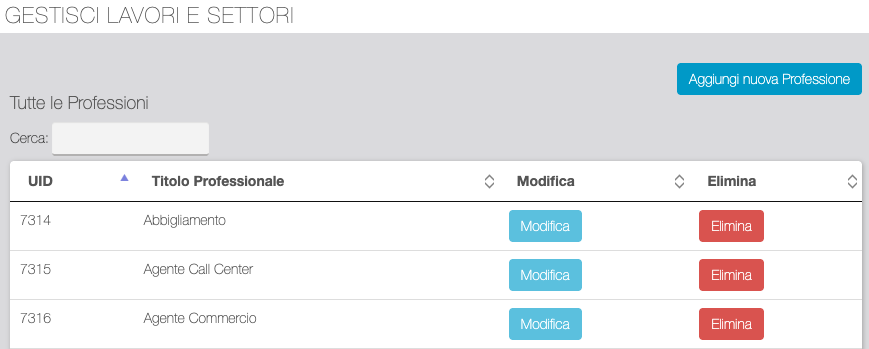
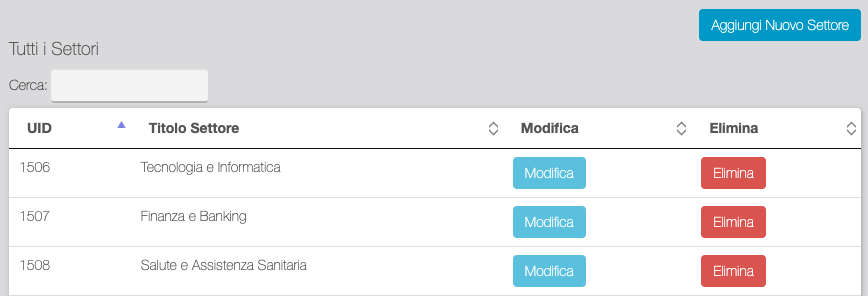
| Function | Description |
|---|---|
  | You can add Jobs & Sectors. You can add them individually, by specifying a label, or by uploading a CSV file. |
 | For both lists there are options for editing and deleting individual entries. |
Countries & Provinces
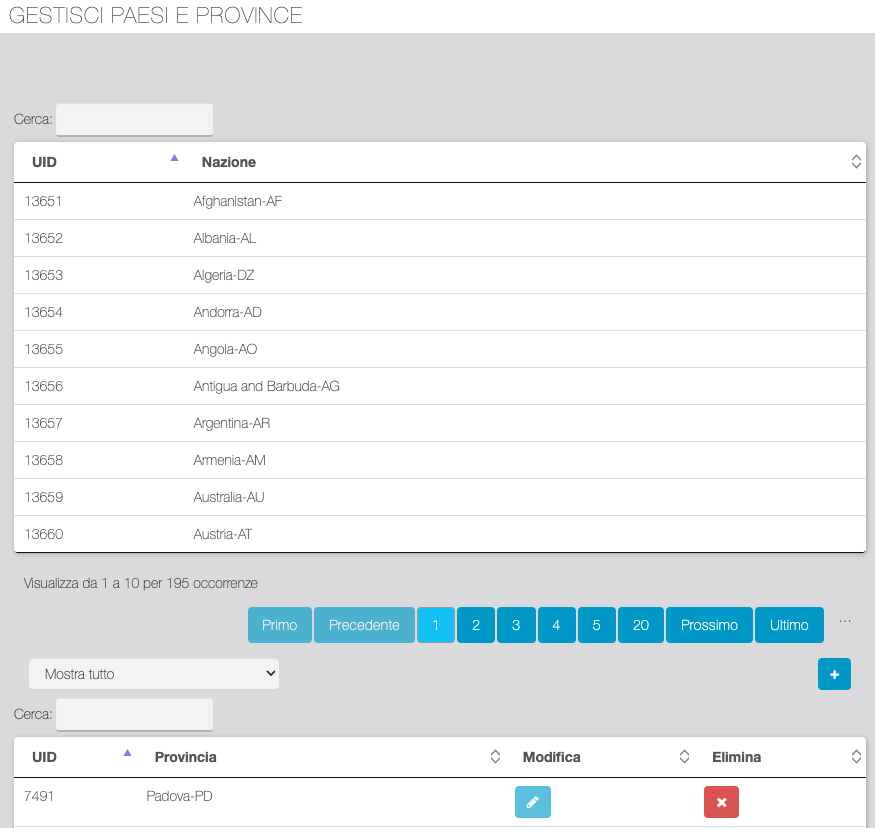
| Function | Description |
|---|---|
| For the Provinces it is possible to make new entries. |
 | In the list of Provinces there are options to modify and delete individual entries. |
Phonebook
Management panel for the Referrers, Prospects and Contacts directory.
REFERRER PHONEBOOK
| Function | Description |
|---|---|
 | Click to download the Directory in CSV format. |
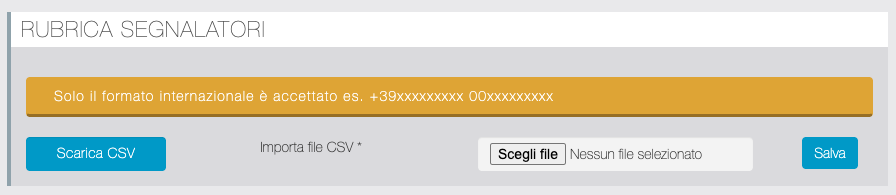
 | To import, upload a CSV file and click Save. |
The table displays all Referrers registered through the app's Settings/Profile page or via opt-in from the landing page. You can download the database in CSV format, manually add a Referrer, and mass-assign/remove an Agent to multiple Referrers with a single action.
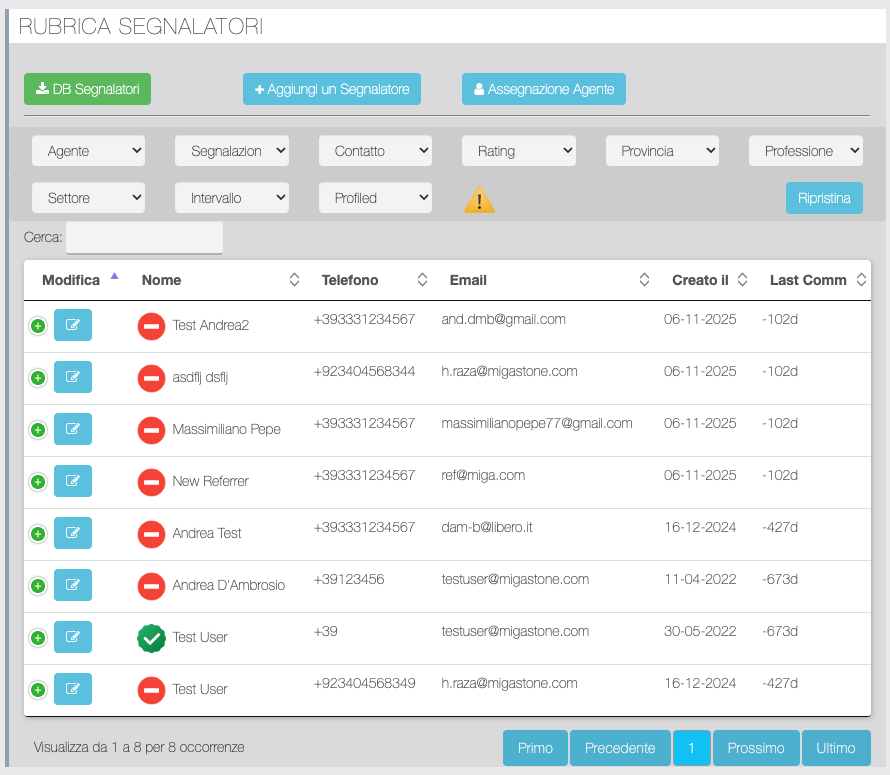
| Function | Description |
|---|---|
 | Access the Referrer's Personal Data tab. |
  | The red symbol warns the manager that important profiling data (Job, Sector, etc.) is missing from the profile. |
 | Indicates that the Referrer has opted in from the Landing Page but has not yet accepted the T&Cs from the app |
 | Disable the operation of the Referrer. |
 | To be verified |
MANAGE REFERRER PHONEBOOK
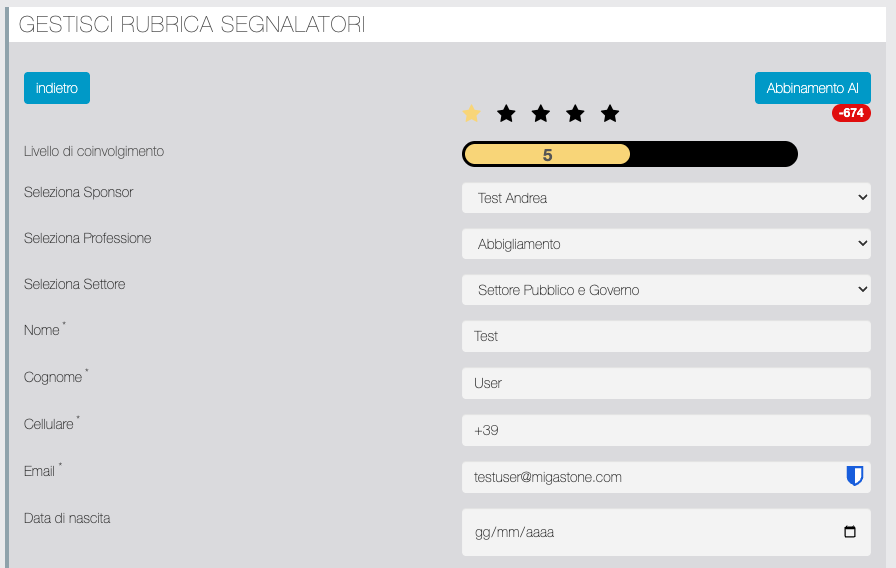
| Function | Description |
|---|---|
 | Rating indication by the manager |
 | Level of involvement |
| Select Sponsor | If the Sponsor Type setting is Standard The manager can assign/modify the Agent from this field. |
| Select Job; Select Sector | Referrer profiling data |
| Name; Surname; Cell phone; ...; etc. | Personal data |
| Relational notes | Who the person is, what connections they have, hobbies, etc. Used to create a relational hook in future contacts with the Referrer. Used for call scripts that will be automatically suggested as examples by the app's AI. |
| Reciprocity notes | What this Referrer is looking for, we need this to understand how we can repay them if they help us close a deal. In addition to the Prize, for example, we'll also try to pass them a good contact. |
ADD CUSTOM CREDITS
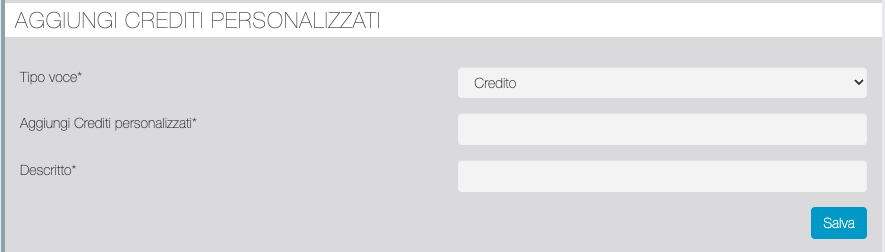
| Function | Description |
|---|---|
| Entry Type | allows the manual movement of Credits to the Referrer. With "Credit" it is possible to add credits, with "Debit" it is possible to subtract credits. Following the insertion, a personalized credit notification is sent. |
| Add Custom Credits | field to enter the number of credits to add or subtract. |
| Description | field to note the reason for manual handling. |
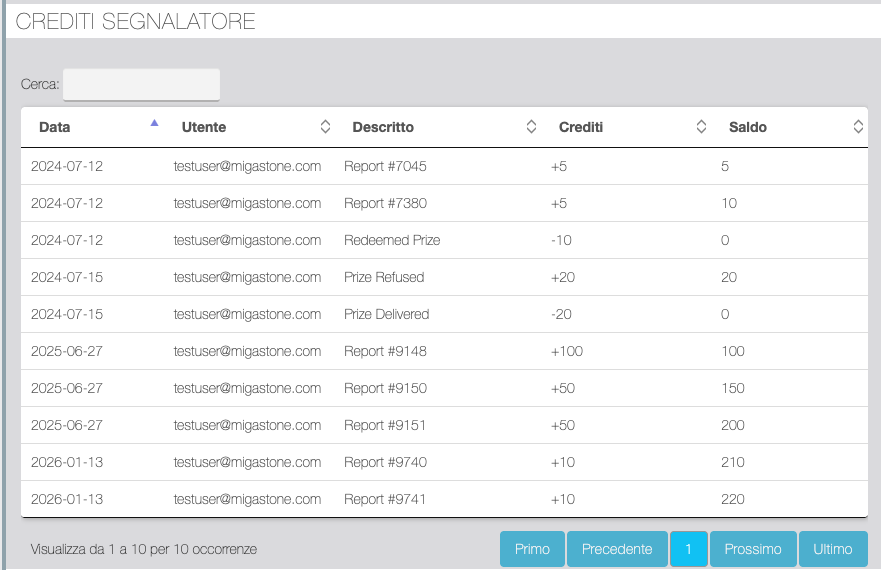
REFERRER CREDITS
The table displays all Credit movements towards the Referrer, both automatic ones for the progress of the Reports and manual ones.
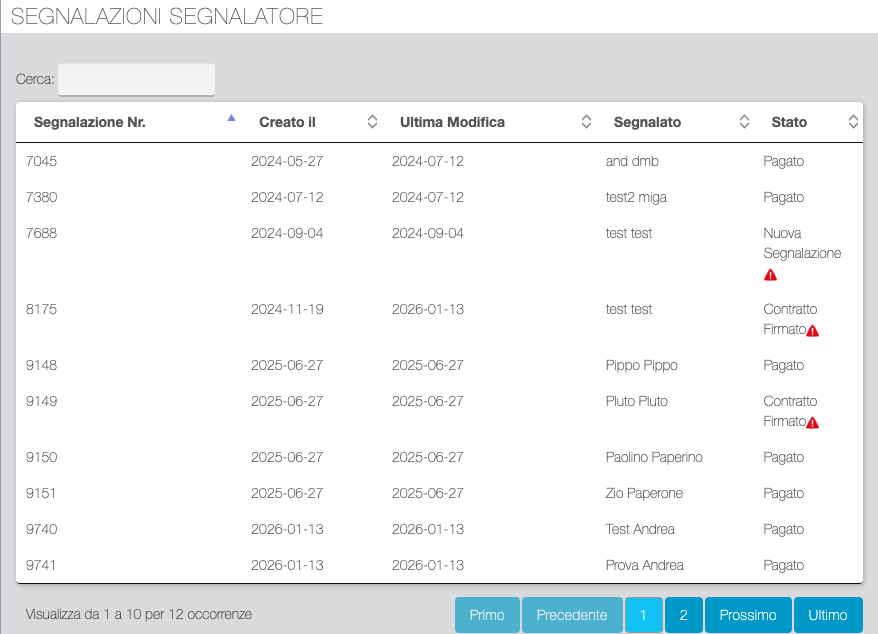
REFERRER REPORTS
The table displays all the Reports sent by the Referrer with the current status.
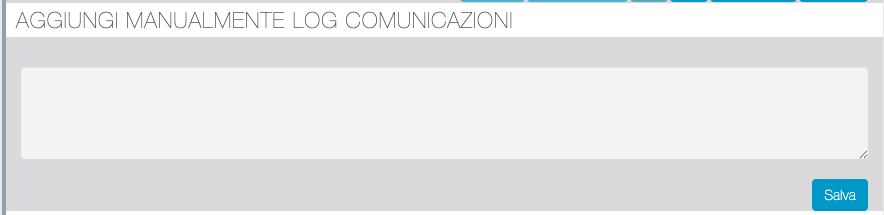
MANUALLY ADD COMMUNICATION LOG
From this section you can manually add notes on communications made.
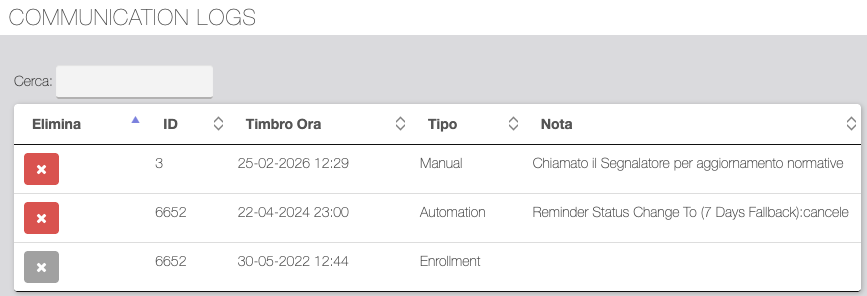
COMMUNICATION LOGS
Log table of both automated and manual communications.
PROSPECT PHONEBOOK
The table displays all the Prospects reported by the Referrers. You can download the database in CSV format, search by Job, and assign a rating in bulk.
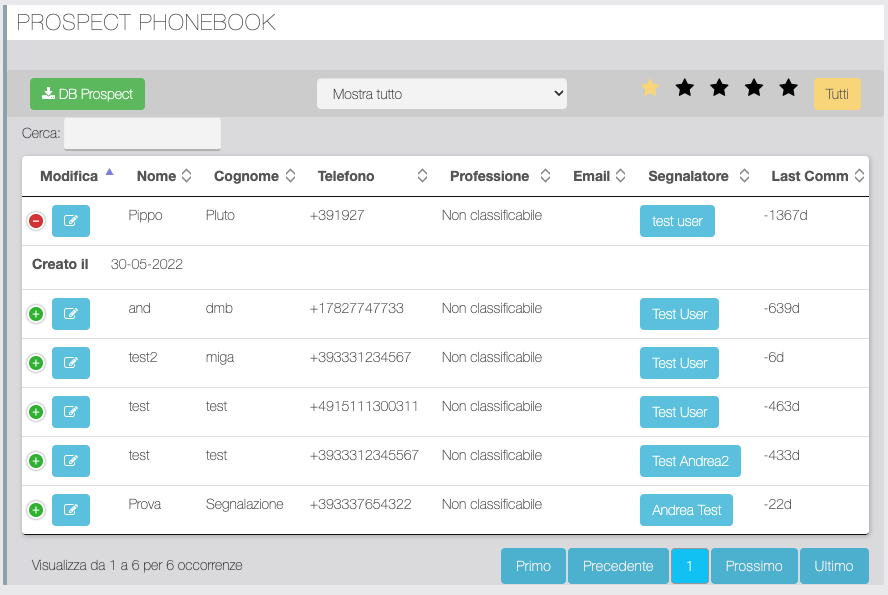
| Function | Description |
|---|---|
| Access the Prospect's Personal Data tab. |
| Button with Referrer name | By clicking this button you access the Referrer Phonebook. |
MANAGE PHONEBOOK (Prospect)
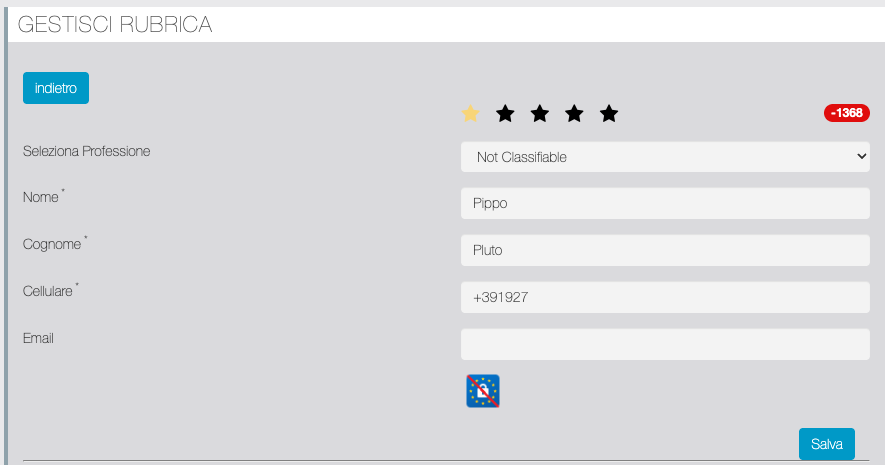
| Function | Description |
|---|---|
| Prospect rating indication |
 | To be verified |
| Job Selection | Prospect Profiling Field |
| Name; Surname; Mobile; Email | Prospect's personal data |
 | Indicates whether the Prospect has expressed the consent to be contacted. Icon with strikethrough = did not confirm consent. |
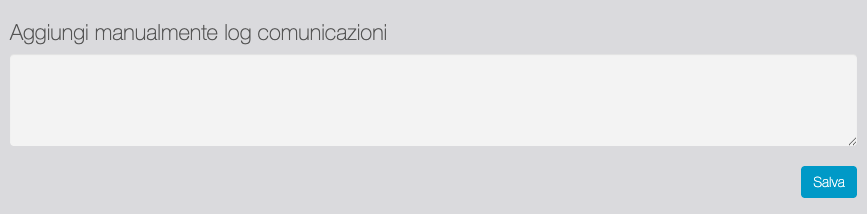
Manually add communication log (Prospect)
From this section you can manually add notes about communications with the Prospect.
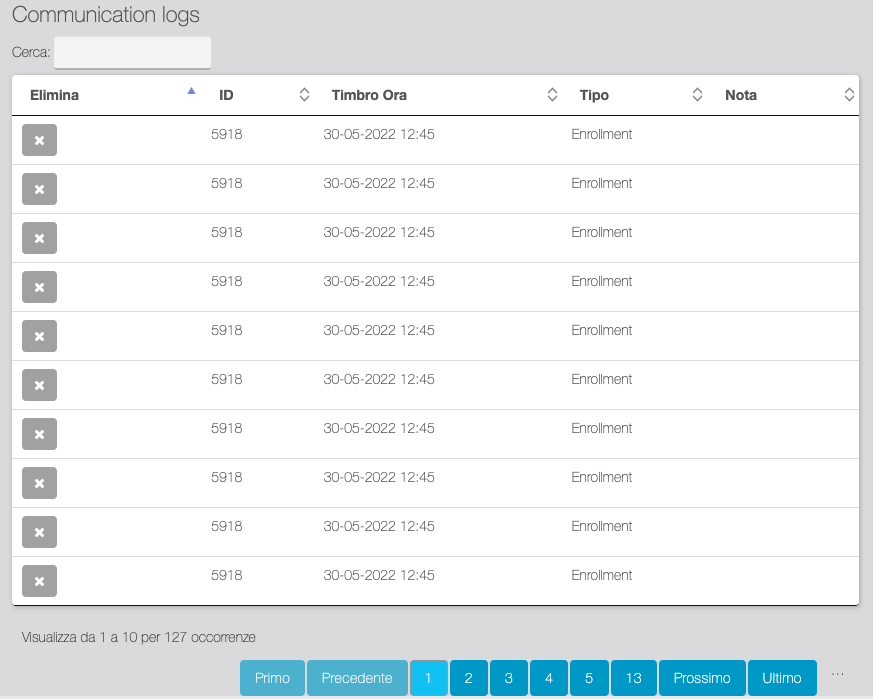
Communication logs (Prospect)
Log table of automated and manual communications with the Prospect.
CONTACT PHONEBOOK
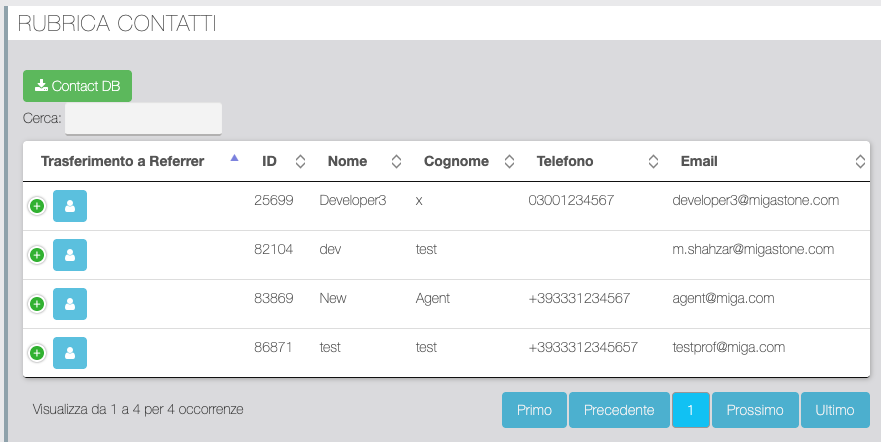
The table shows users registered in the app who have no roles assigned.
| Function | Description |
|---|---|
 | By clicking this button, the manager can confirm that the Terms and Conditions have been accepted by the user, thus assigning the user the role of Referrer. |
REFERRER WELCOME EMAIL TEMPLATE
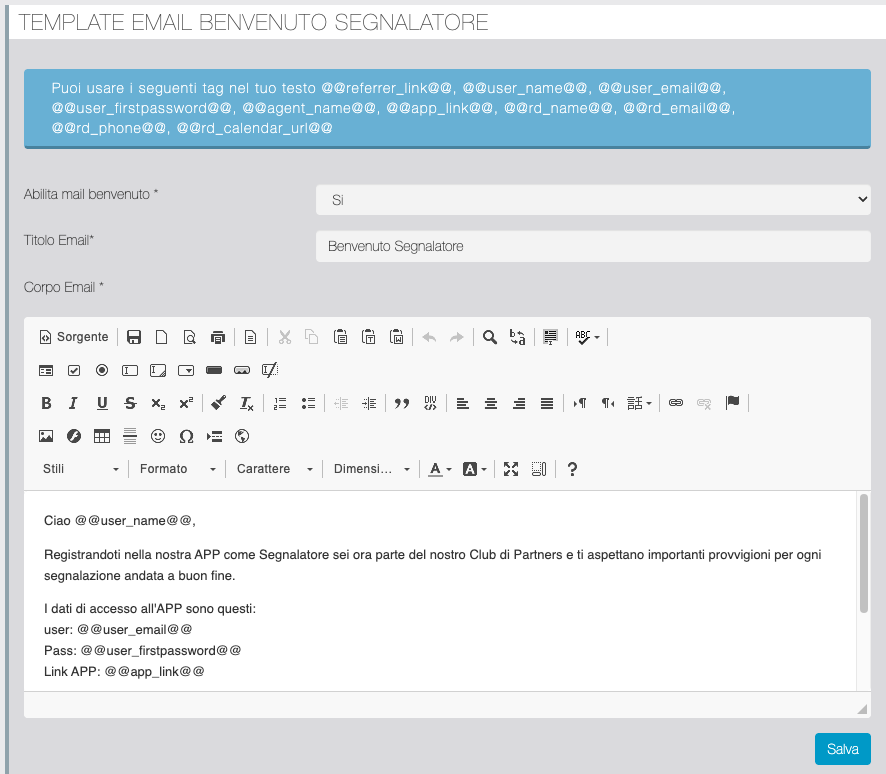
From this section you can enable/disable and customize the Welcome email that the user receives when they sign up as a Referrer from the REPORT > Settings/Profile in the app.
Reminder
REMINDER TYPES
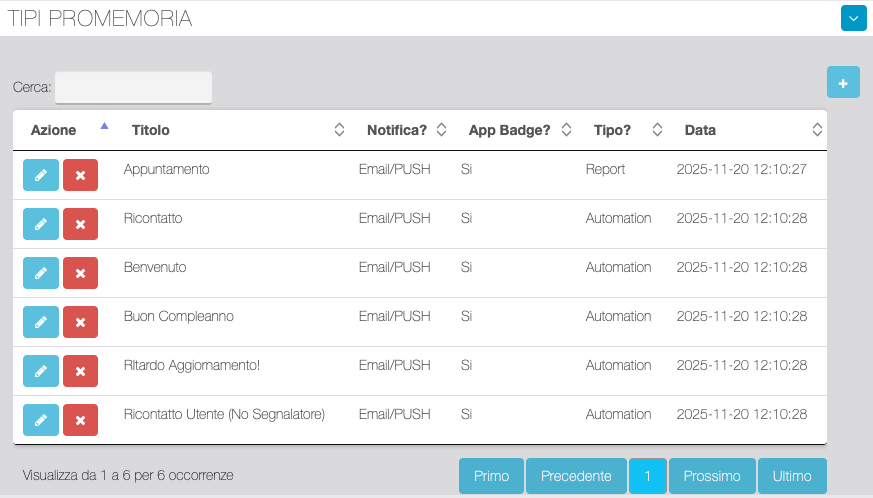
From this section you can insert and edit the content of messages, Email and Push, used for automatic and manual reminders.
| Function | Description |
|---|---|
| Access to edit. |
| Remove the Reminder type. |
Add New Reminder Type
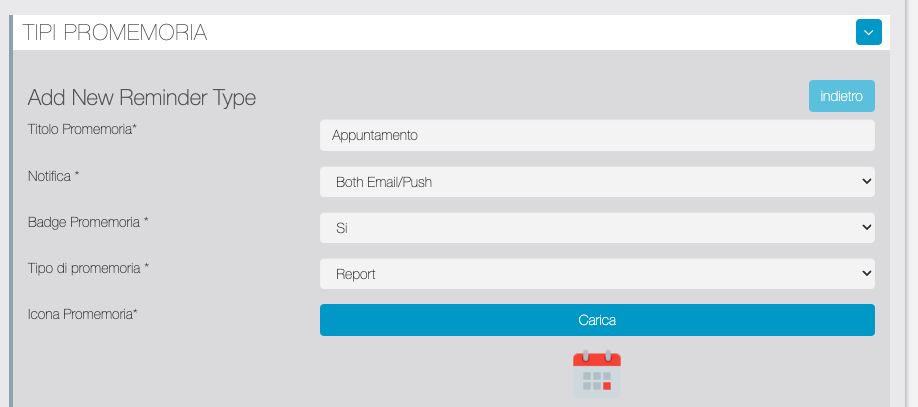
Add/edit a Reminder Type.
| Function | Description |
|---|---|
| Reminder Type | Model Name |
| Notification | Select whether the message will be sent as email, push, or both. |
| Reminder Badge | If enabled, the icon is shown in the Reminders section of the app. |
| Reminder Type | Report: if used to send manual Reminders. Automation: if used by one or more automations. |
| Reminder Icon | Click the button to upload a custom icon. |
| Email subject; Email body | Fields for customizing the email template. You can use the tags shown in the box above. |
| Push Title; Push Message | Fields for customizing the push notification. You can use the tags shown in the box above. |
| Open an app page or URL | Activates a call to action when a user clicks on the notification. If set to Yes, you can choose a page in the app or enter an external URL. |
| Upload a Cover | Custom Push image. |
REMINDER AUTOMATION + WEBHOOK
From this section, you can add and edit automatic reminders. You can send tests using the corresponding buttons at the top of the table.
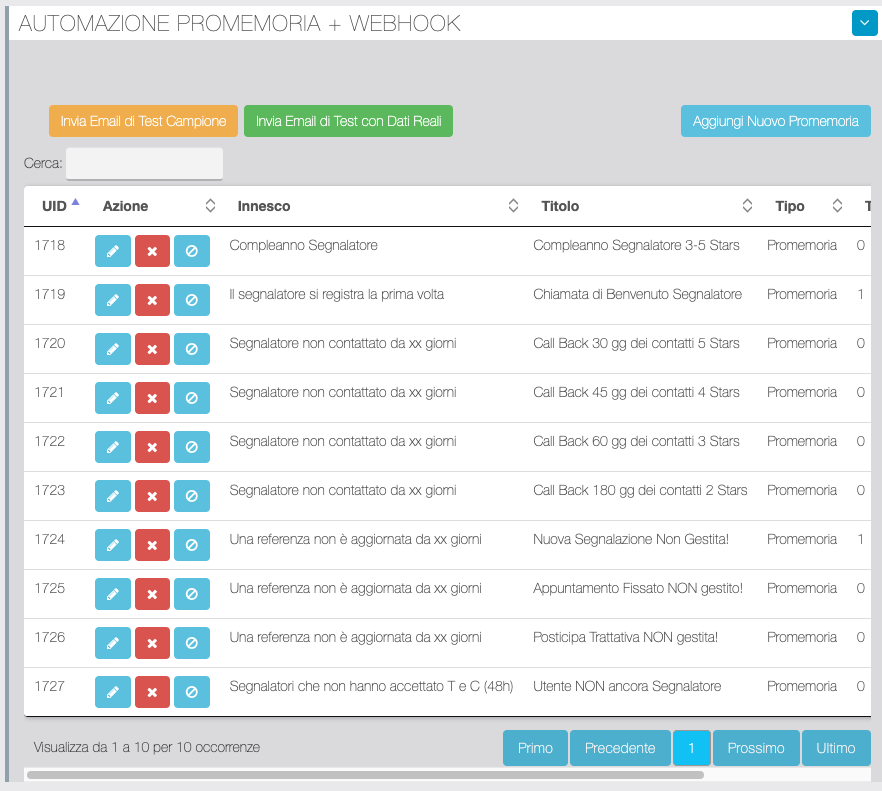
| Function | Description |
|---|---|
| Access to edit. |
| Delete the Reminder. |
 | Enable/disable Reminder. |
Add / Edit Reminder
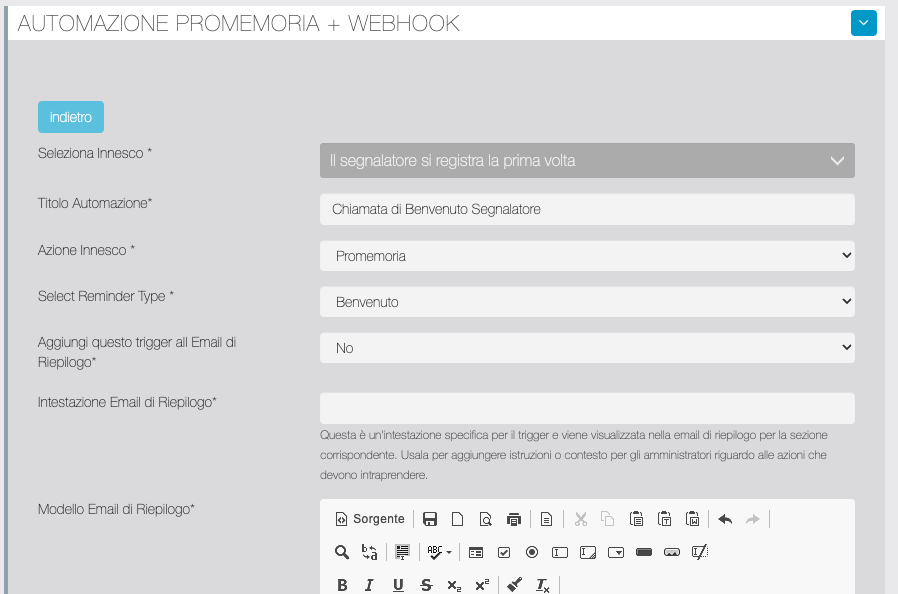
| Function | Description |
|---|---|
| Select trigger | Select the event that triggers the reminder from the drop-down menu. |
| Reminder Title | Describes the Reminder |
| Trigger Action | To be verified |
| Select Reminder Type | Select the message template to send from the Reminder Types. Depending on the type of reminder, additional fields will be enabled to restrict sending to only Referrers with a certain rating or within a certain range. |
| Add this trigger to your Summary Email | If enabled, you can group all the same type of messages from the day into a single summary message. (Summary Email must be enabled in General Settings) |
| Summary Email Header | |
| Summary Email Template | Used to add instructions or context for administrators regarding the actions they should take. |
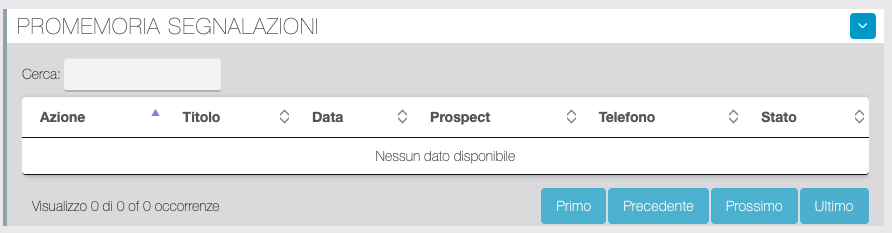
REPORT REMINDERS
Table of Reminders on Individual Reports
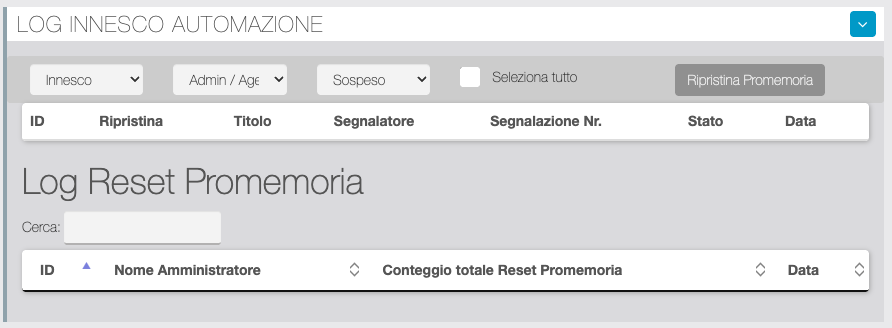
AUTOMATION TRIGGER LOG
Reminder log table. You can check the status of your reminders by filtering by reminder type, reminder recipient, and status. You can also reset one or more reminders by selecting them individually from the table or by clicking "Select All."
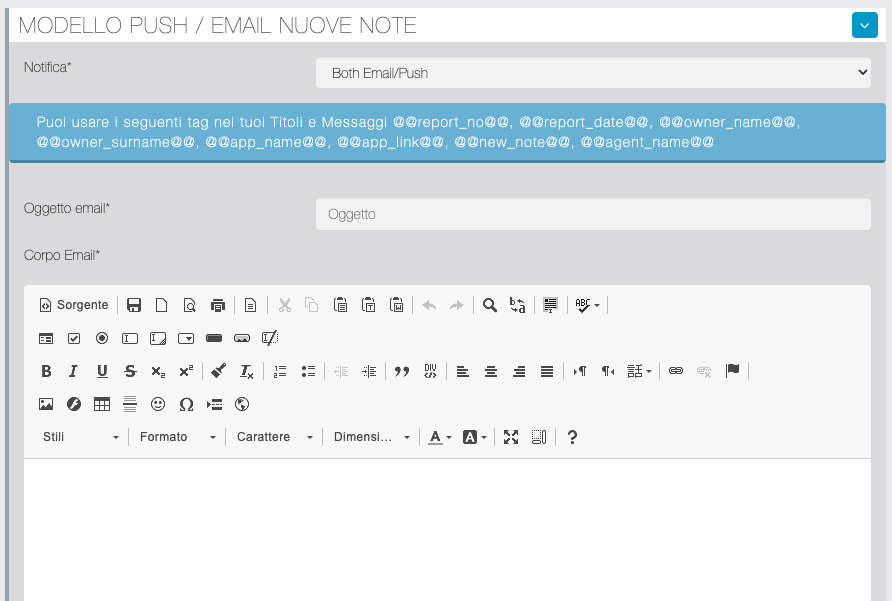
NEW NOTES PUSH / EMAIL TEMPLATE
In this section, you can enable email, push, or both notifications when a new note is added to a report. The note can be added from the app (Migareference page > Report Status) by users with the role to manage reports.
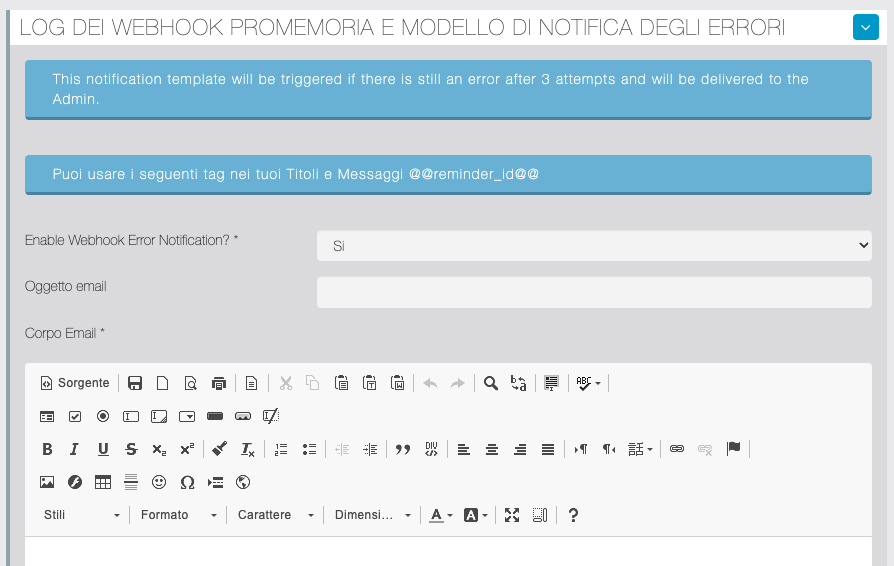
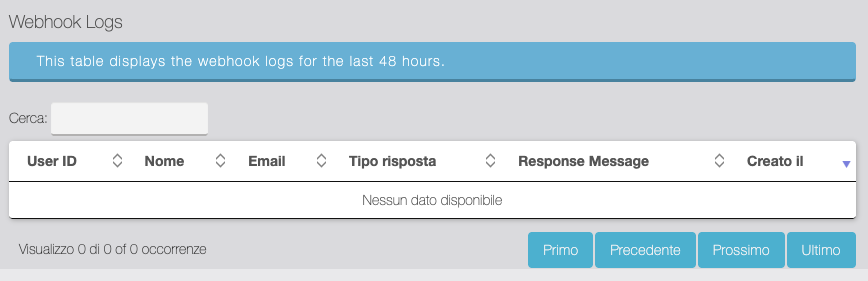
REMINDER WEBHOOK LOGS AND FAILURE NOTIFICATION TEMPLATE
In this section you can check the Reminder webhook log and customize the push/email for failure notification templates.
Report & Credit API
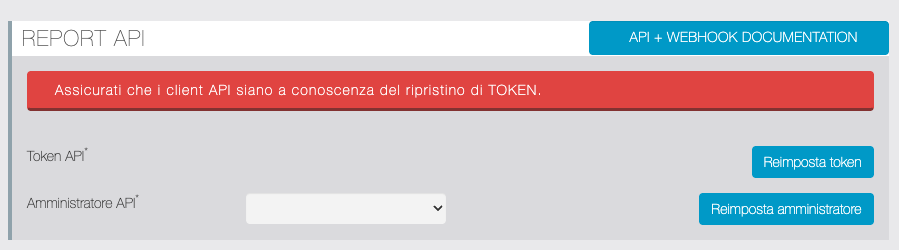
REPORT API
| Function | Description |
|---|---|
 | Access the complete API and Webhook documentation. |
 | Resetting the token for the API connection. |
 | Reset Admin. |
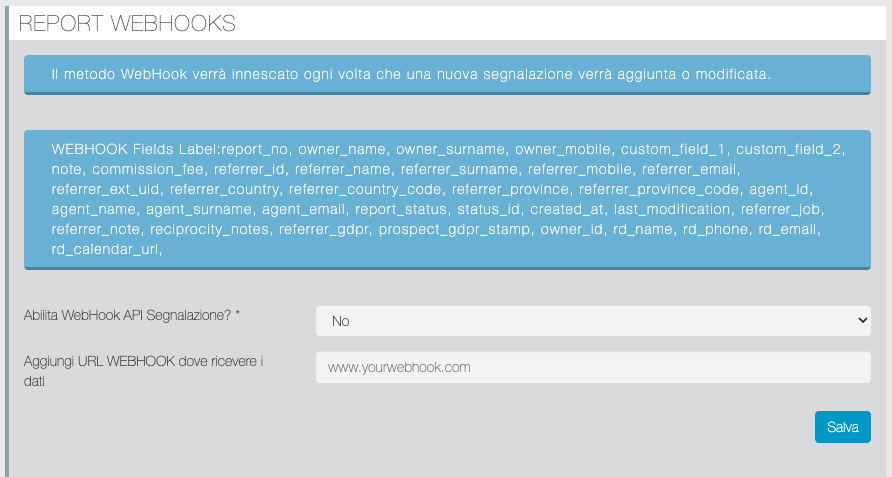
REPORT WEBHOOKS
| Function | Description |
|---|---|
| Enable Report API Webhook? | Enable/Disable |
| Add WEBHOOK URL to receive data | Webhook URL |
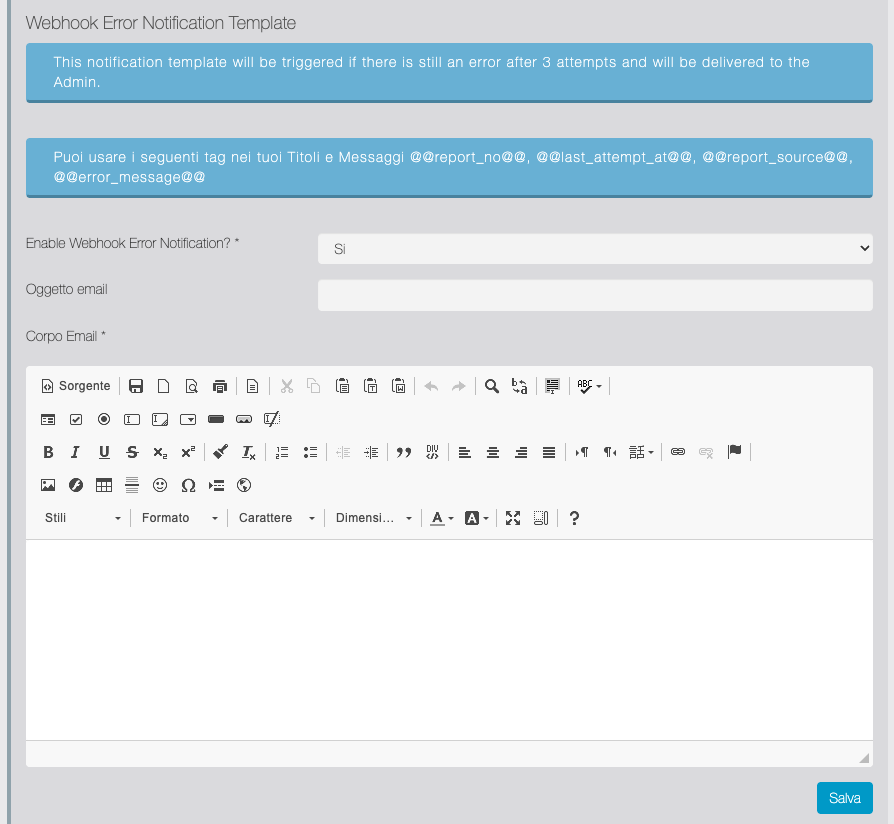
Webhook error notification template
Setting up error notification email.
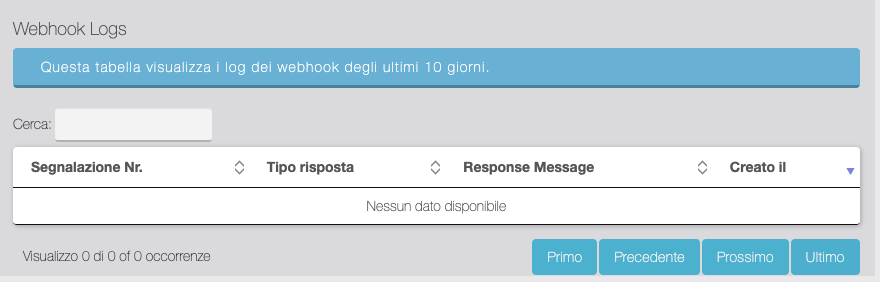
Webhook logs
Report Webhook Log Table
REFERRER WEBHOOKS
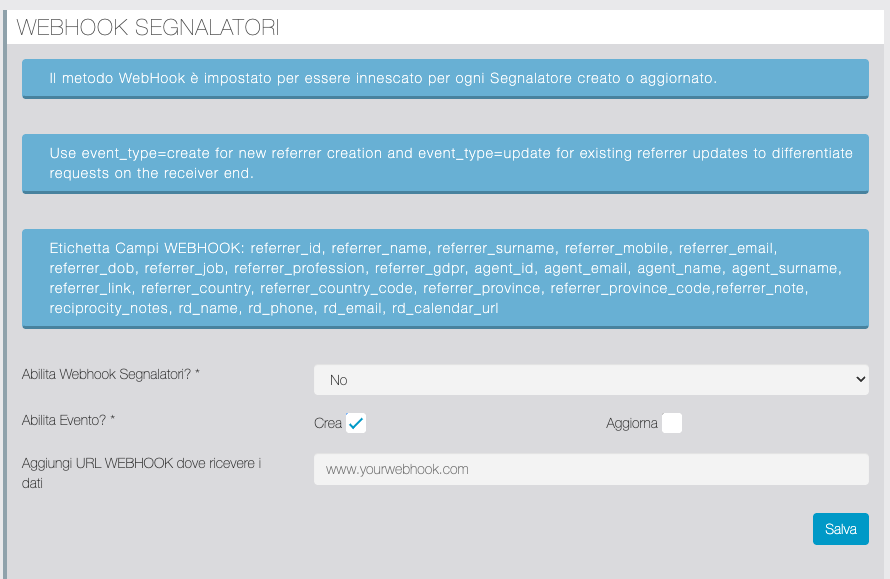
| Function | Description |
|---|---|
| Enable Referrer Webhooks? | Enable/Disable |
| Enable event? | Allows you to trigger the Webhook on the creation of a new Referrer, the modification of an existing Referrer's data, or both events. |
| Add WEBHOOK URL to receive data | Webhook URL |
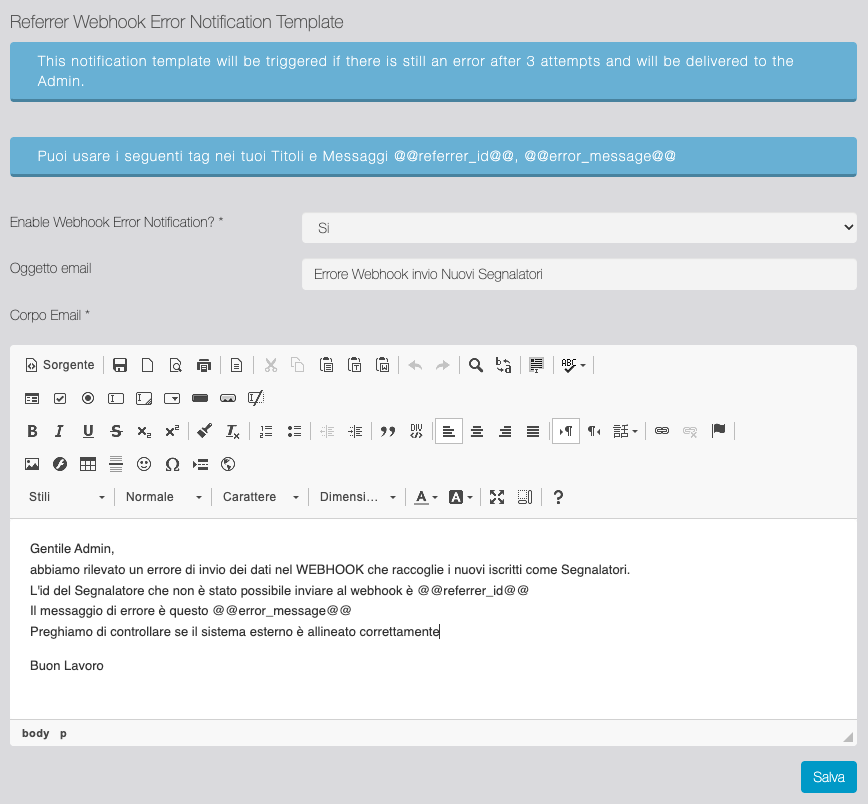
Referrer Webhook error notification template
Setting up error notification email.
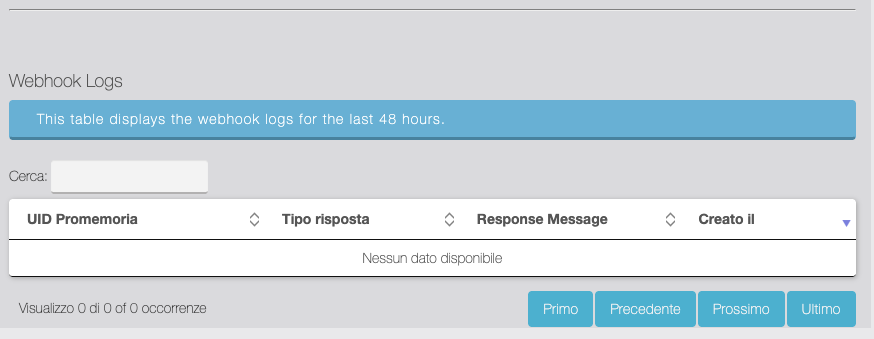
Webhook logs
Referrer Webhook Log Table
CREDITS API
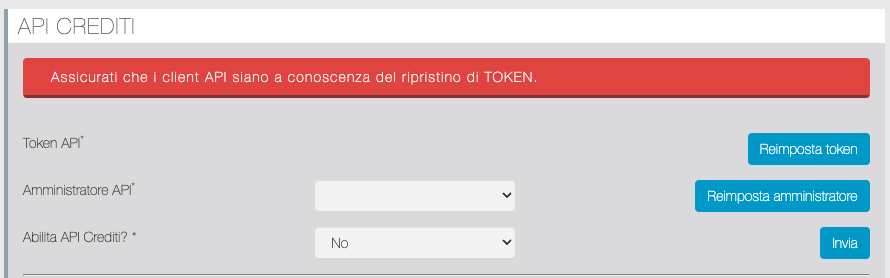
| Function | Description |
|---|---|
| Resetting the token for the API connection. |
| Reset Admin. |
| Enable Credits API? | Enable/Disable |
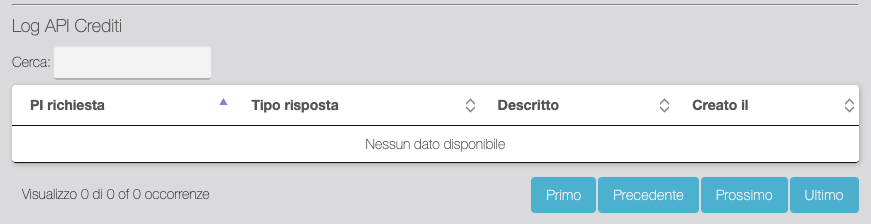
Credits API log
Credits API Log Table
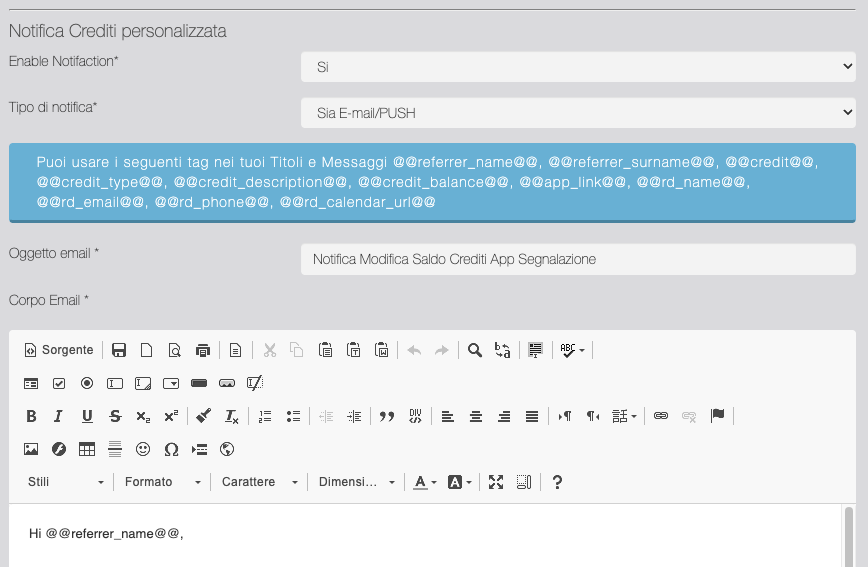
Custom Credits Notifications
In this section, you can customize the notification messages the Referrer receives when the manager makes a manual transaction in the Credit balance. You can choose to send the notification via email, push, or both.
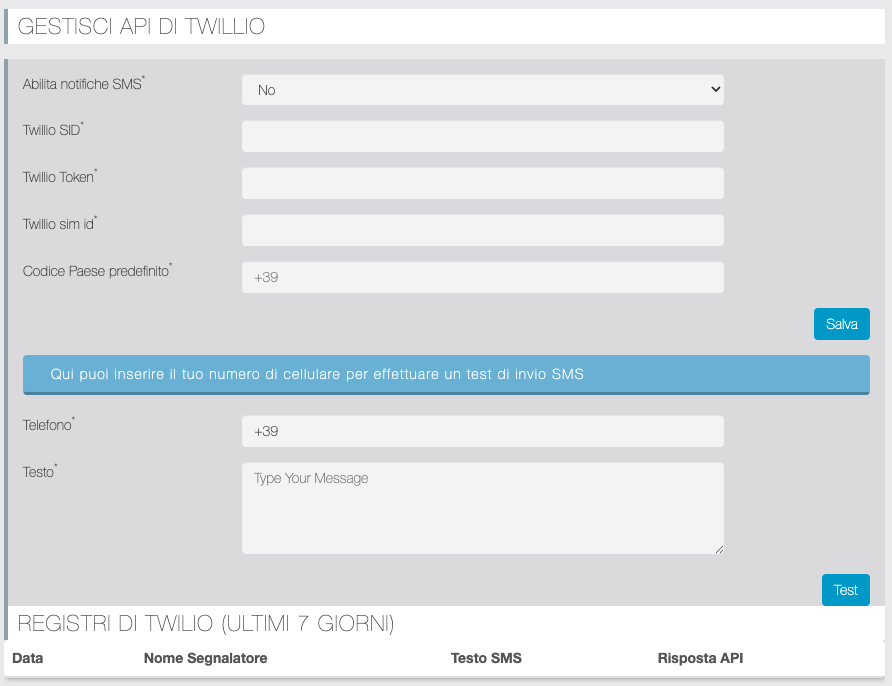
Twilio API
From this panel, you can also enable SMS notifications for report status. This option uses the Twilio API (a Twilio account is required). The panel contains all the parameters for setting up the API connection, a section for test notifications, and a log table of communications from the last 7 days.
OPTIN Form
SOURCE CODE FOR LANDING PAGE
In this section, you can customize and generate the code for the Optin Form to copy and paste into your external landing page. The Optin Form allows users to sign up as Referrers. New Referrers who sign up from the Optin Form are automatically created with an account in the app.
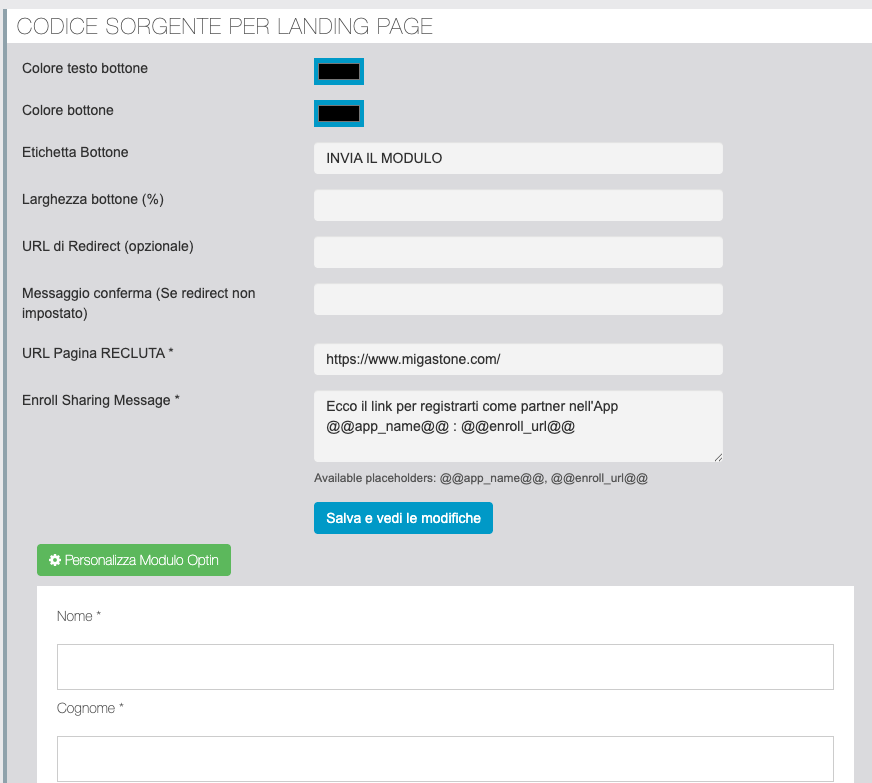
| Function | Description |
|---|---|
| Button text color; Button color; Button width | Customizing the optin form submit button. |
| Redirect URL (optional) | Allows you to redirect after submitting the form (e.g. to a Thank you page). |
| Confirmation message (If redirect not set) | If the redirect URL is not set, a confirmation message will appear in the popup. Here you can customize the popup message. |
| RECRUIT Page URL | Enter the URL of the landing page where the opt-in form is integrated. This way, users with the Agent role can share a Referrer Link, automatically generated for each Agent, which automatically assigns the new Referrer who signs up through that link to them (the "Who invited you to download the app?" field will be pre-populated and cannot be edited). Agents will be able to use their Referrer link via a RECRUIT button on the Migareference page of the app (only for users with the AGENT role). |
| Enroll Sharing Message | Auto-generated message when the AGENT uses the RECRUIT button in the app. With the RECRUIT button, the Agent can choose which method to share the message with from those available (Whatsapp, Email, SMS, or Copy/Paste). |
 | Accesses the customization screen for some fields of the Optin form. |
 | Generate the optin form code to paste into the landing page. |
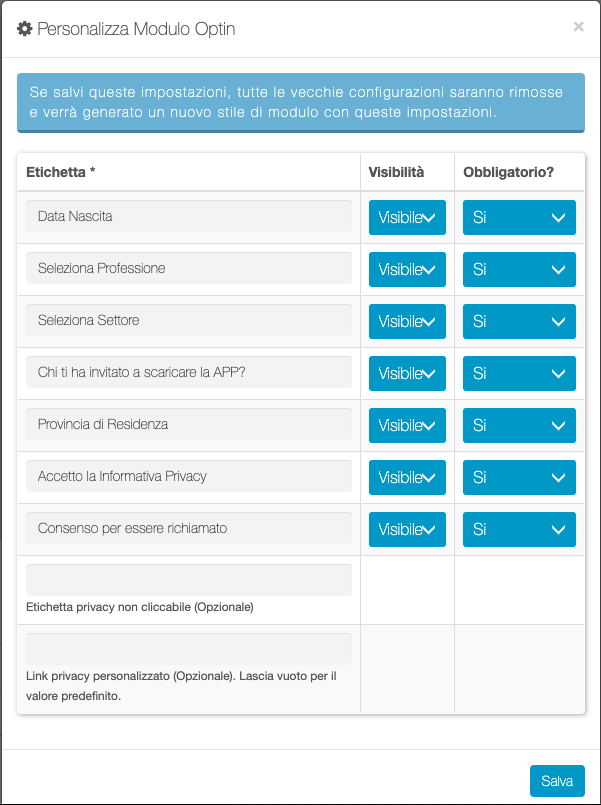
Customize Optin Form
From this screen you can enable/disable and make mandatory some additional fields in the Optin form. You can also customize the Privacy Policy field label and enter a URL if the policy you want to display is on an external page. If the URL is not specified, the link will take you to the app's general Privacy Policy.
OPTIN FORM REFERRERS
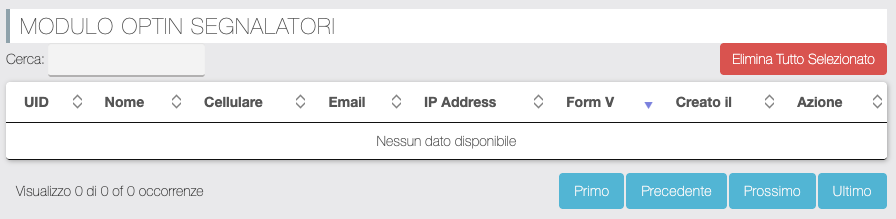
This section displays a list of opt-ins, useful for eliminating any unwanted registrations. It's useful for distinguishing not only the personal and contact information entered, but also the IP address and the version of the form code used (since we've introduced increasingly effective captcha filters over time).
| Function | Description |
|---|---|
 | Button to be used to delete multiple rows, after having made multiple selections from the "Action" column |
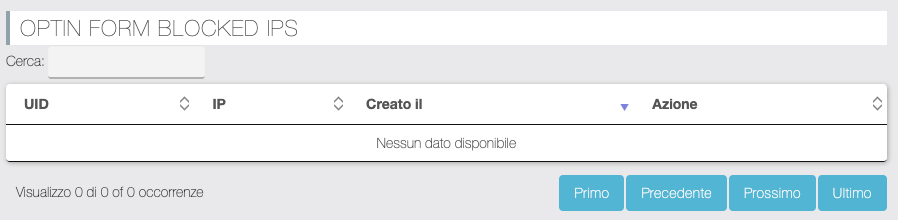
OPTIN FORM BLOCKED IPS
Blocked IP log table.
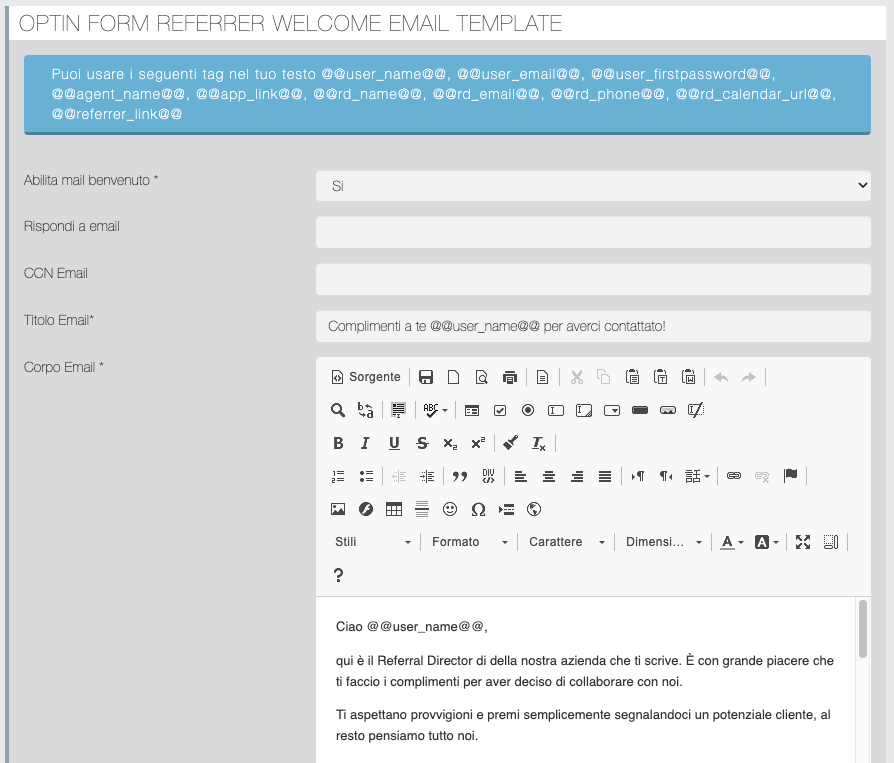
OPTIN FORM REFERRER WELCOME EMAIL TEMPLATE
In this section, you can customize the email sent to the user after submitting the opt-in form. An account is automatically created for the user in the app in this case, so among the various available tags are @@user_email@@ and @@user_firstpassword@@, which are important to include in the message to communicate them to the new subscriber. @@referrer_link@@ is also particularly important, as this link will allow the Referrer to invite new Prospects they intend to refer.
| Function | Description |
|---|---|
AI Integration
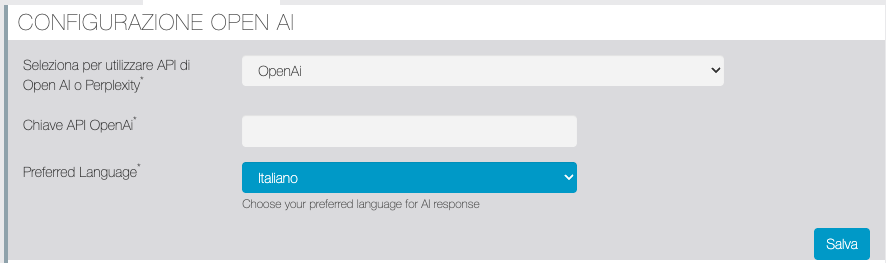
OPEN AI CONFIGURATION
In this section you can select which AI API to use, set the related API key, and the default language for AI responses.
CALL SCRIPT CONFIGURATION
In this section, you can activate and configure the call script developed by the AI, which helps the Referral Director in follow-up calls and in general contact with Referrers, through artificial intelligence. On the app side, the user with the Administrator role accesses the management of automatic reminders from the Migareference page, REMINDERS section and requests the processing of the call script by clicking on the small "Robot" icon present on each reminder  .
.
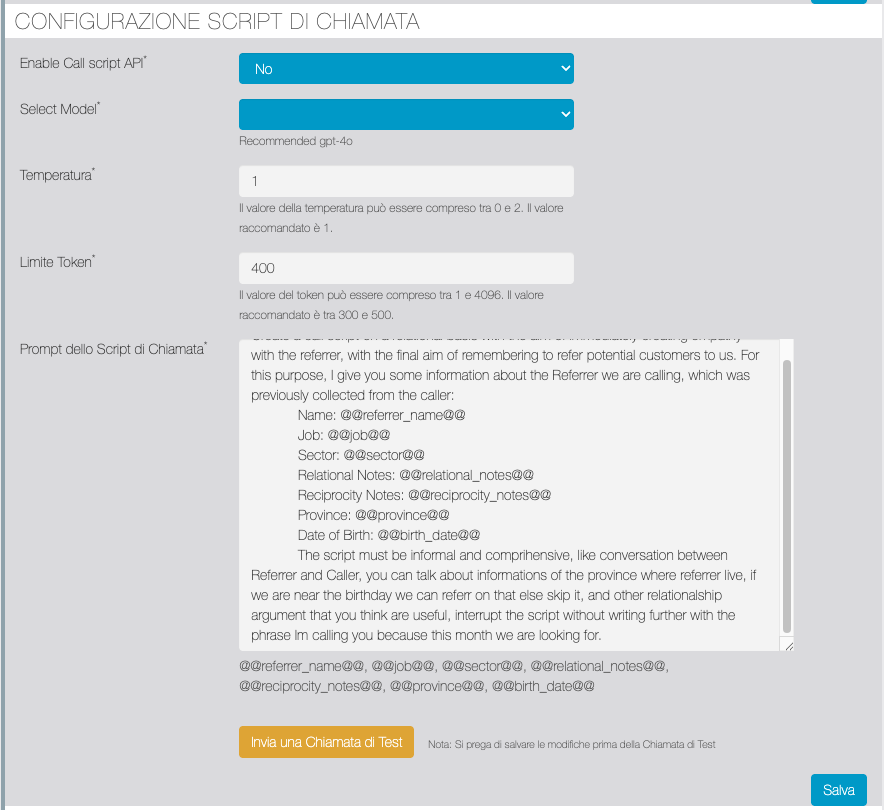
| Function | Description |
|---|---|
| Enable Call Script API | Enable/disable call script |
| Select Model | Select the AI model |
| Temperature | Recommended default value 1. |
| Token Limit | Recommended default value 400. |
| Call Script Prompt | The call script prompt is used to instruct the AI model to provide the responses. IMPORTANT: the app manager will have to intervene in the COMPANY CONTEXT section of the prompt by replacing the XXXX with their own company data. |
AFFINITY SCORING CONFIGURATION
In this section you can activate and configure the AI-generated Matching function between Referrers. For the effectiveness of the Matching, it is essential to fill in the profiling fields in the Referrers Phonebook in particular Job, Sector, Relational Notes and Reciprocity Notes. On the app side, the user with the Administration role accesses the Referrer Database from the Migareference page, Phonebook section, and requests a matching by clicking the "AI Matching" button. For each name suggested by the AI, the user can accept or cancel the match, or discard it so it won't be proposed again in further processing requests.
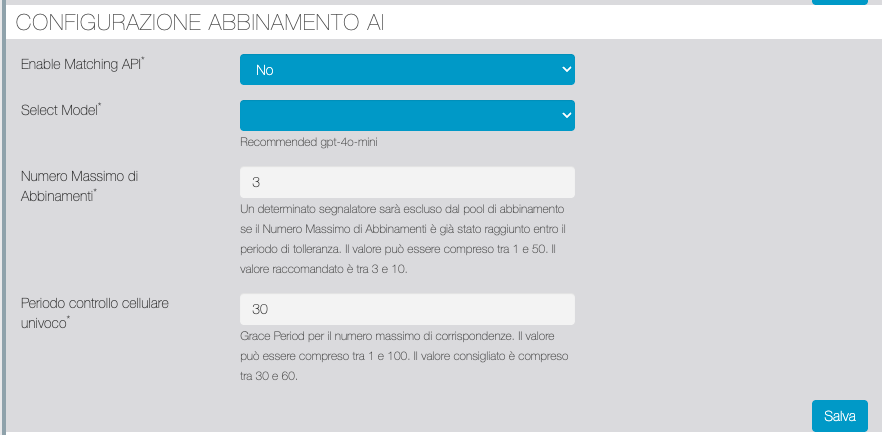
| Function | Description |
|---|---|
| Enable Matching AI | Enable/disable the matching feature. |
| Select Model | Select the AI model |
| Maximum Number of Matches | The maximum number of names matched |
| Unique Mobile Number Check Period | The timeframe for checking for any duplications is based on the mobile number entered in the registry. |
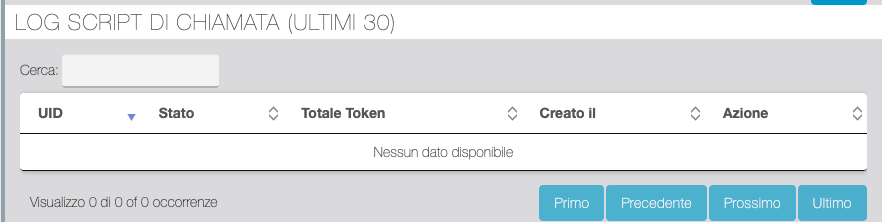
CALL SCRIPT LOG (LAST 30)
Log screen of the last 30 processed call scripts.
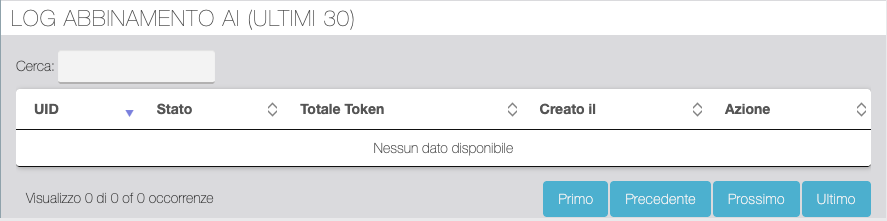
AI MATCHING LOG (LAST 30)
Log screen of the last 30 matches processed.
Qualifications
This feature allows you to assign qualification levels to Referrers upon reaching a threshold of Credits received for reporting. Enabling or disabling this feature and the time interval for maintaining the achieved qualification are to be defined in General Settings.
MANAGE QUALIFICATIONS
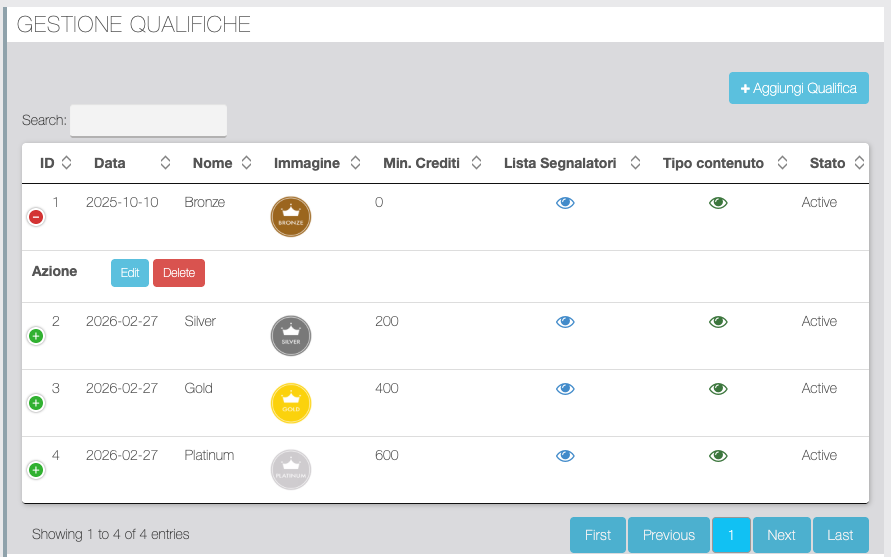
| Function | Description |
|---|---|
 | Add a new Qualification. |
List of Referrers  | Click to view the list of Referrers who currently have this Qualification |
Content Type  | Access the screen for assigning specific content that is visible in the app only to Referrers who currently have this Qualification. You can assign either a single custom Page or a Folder in which to place multiple Pages. You can only choose between Pages or Folders set to "hidden" because they shouldn't be visible to all users. Once the Page or Folder has been assigned, Referrers with this Qualification will be able to access it via a button on the Migareference page (The appearance and label of the button can be customized from the Qualifications section of the APP Content tab). |
 | Edit accesses the Qualification insertion/modification tab, Delete allows deletion. |
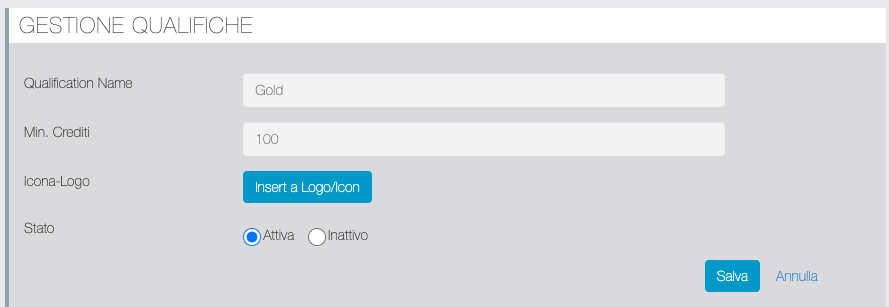
QUALIFICATION MANAGEMENT
From this screen, you can add or edit a Qualification by defining its name, the credit threshold to obtain it, and upload a logo that will be displayed by the Referrer on the Migareference page of the app. You can also activate/deactivate the qualification.
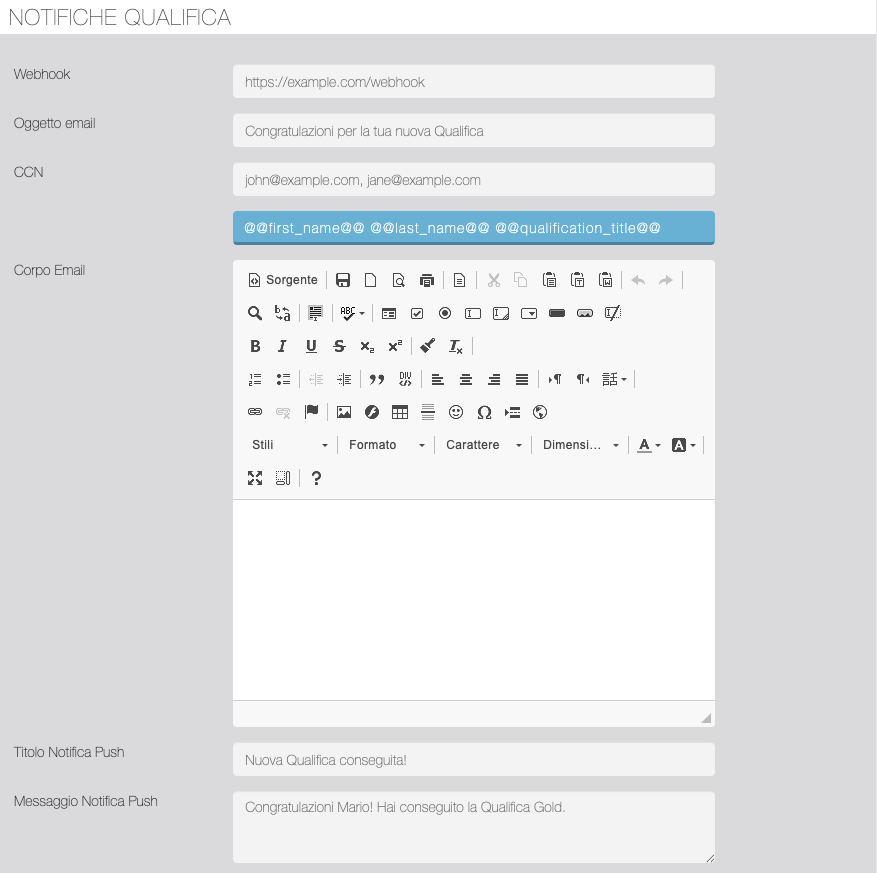
QUALIFICATION NOTIFICATIONS
From this section, you can customize the email and push notifications sent to the Referrer when they reach a new Qualification. You can also set up a Webhook that always triggers when the new Qualification is achieved.